.jpg)
“Functional locations” tab
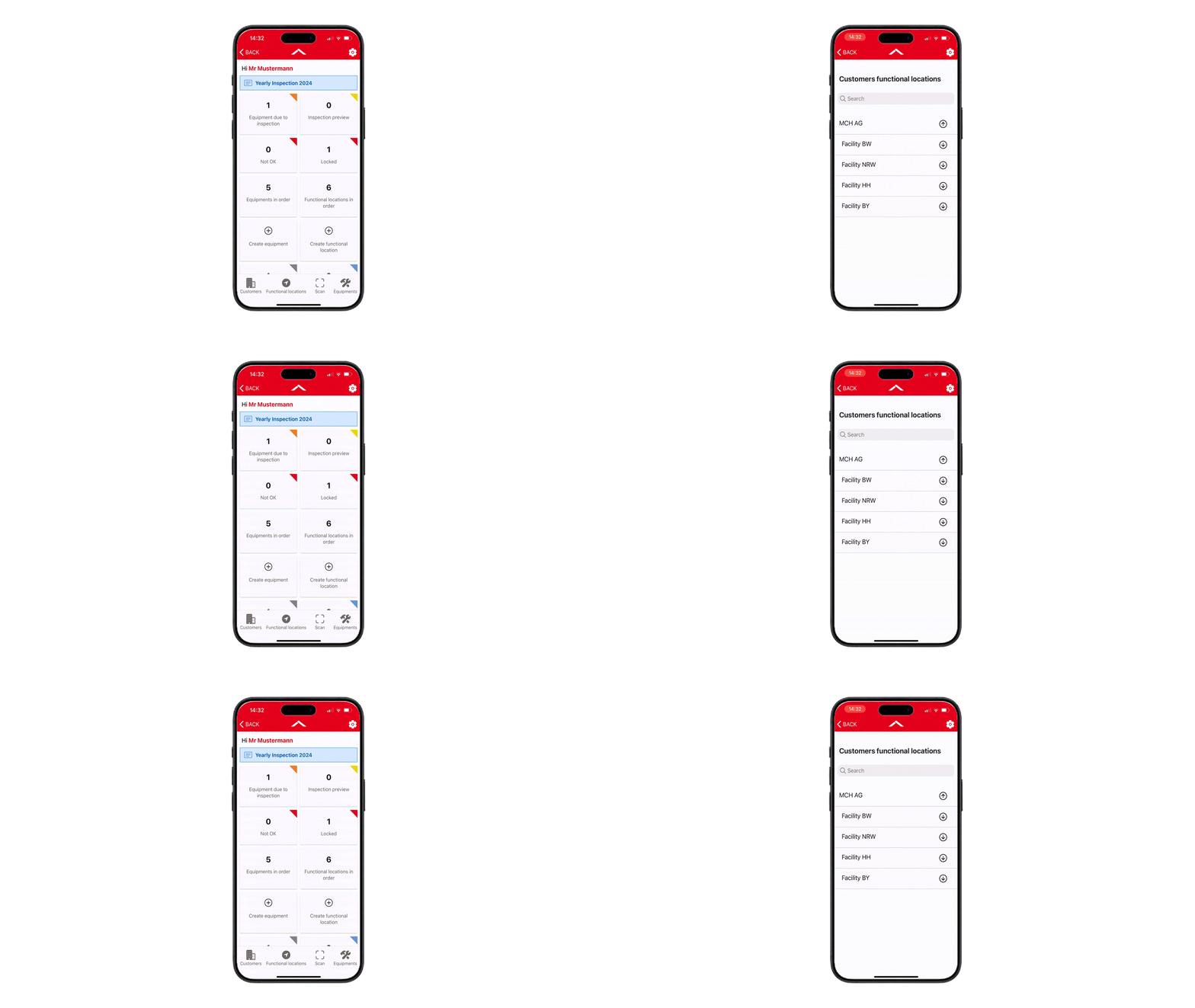
All functional locations of the organization that is accessible through the currently opened inspection order can be displayed via the "Functional Locations" tab in the navigation bar.
By clicking the arrow (↓) on the right-hand side, subordinate functional locations can be displayed and selected.
After opening a functional location, the associated equipments are displayed and can be opened directly.
Create a Functional Location
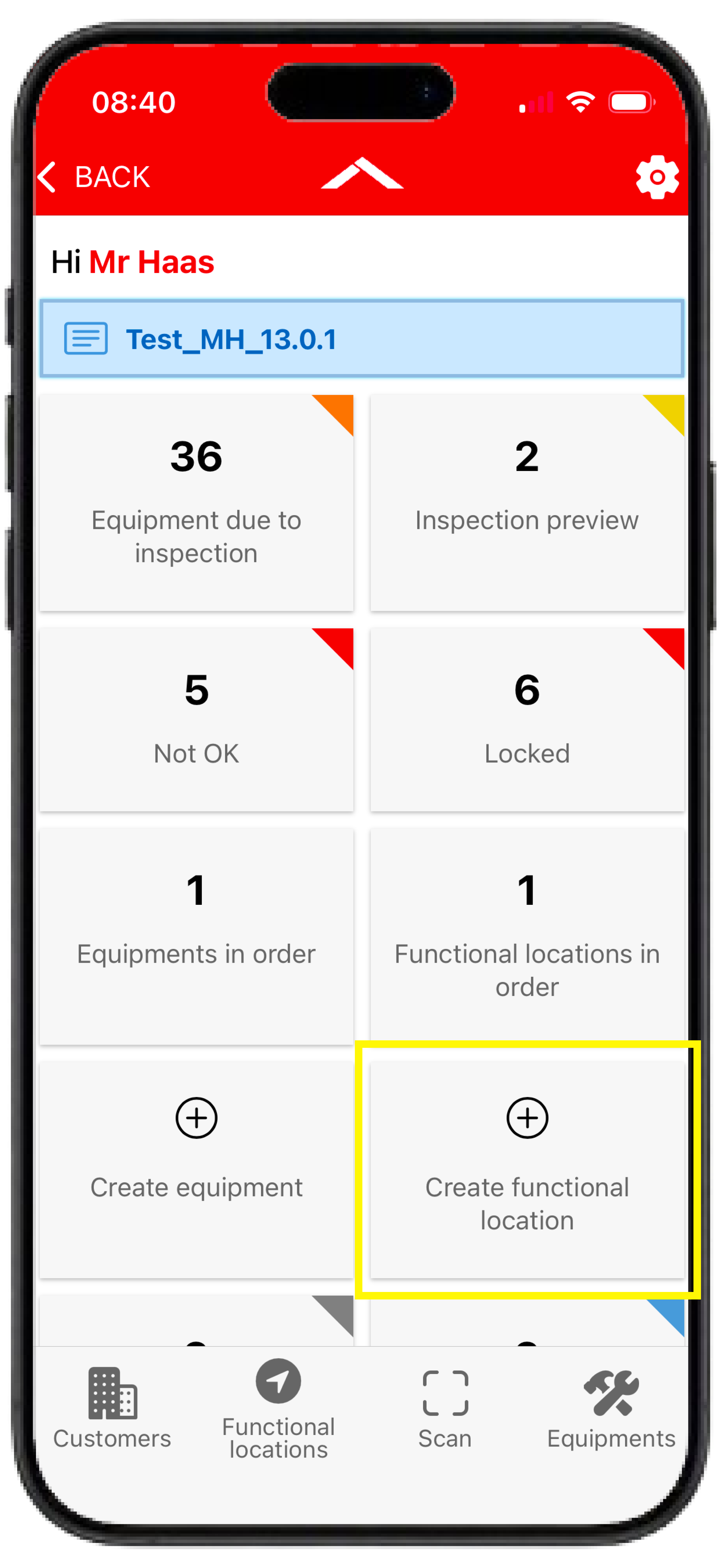
New functional locations can be created directly through the corresponding tile on the dashboard within the app.
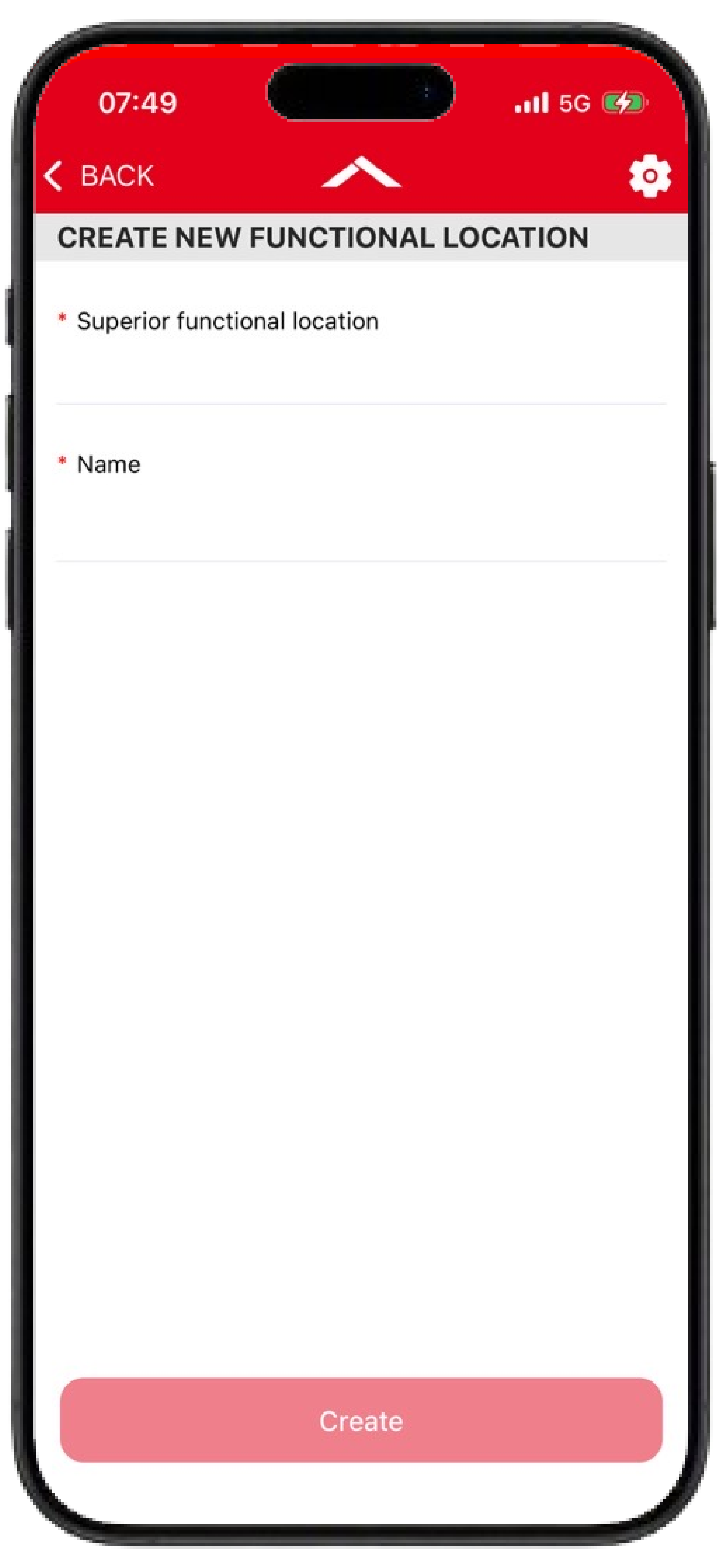
To create a functional location, at least a name and a superior functional location must be specified.
Edit Functional locations
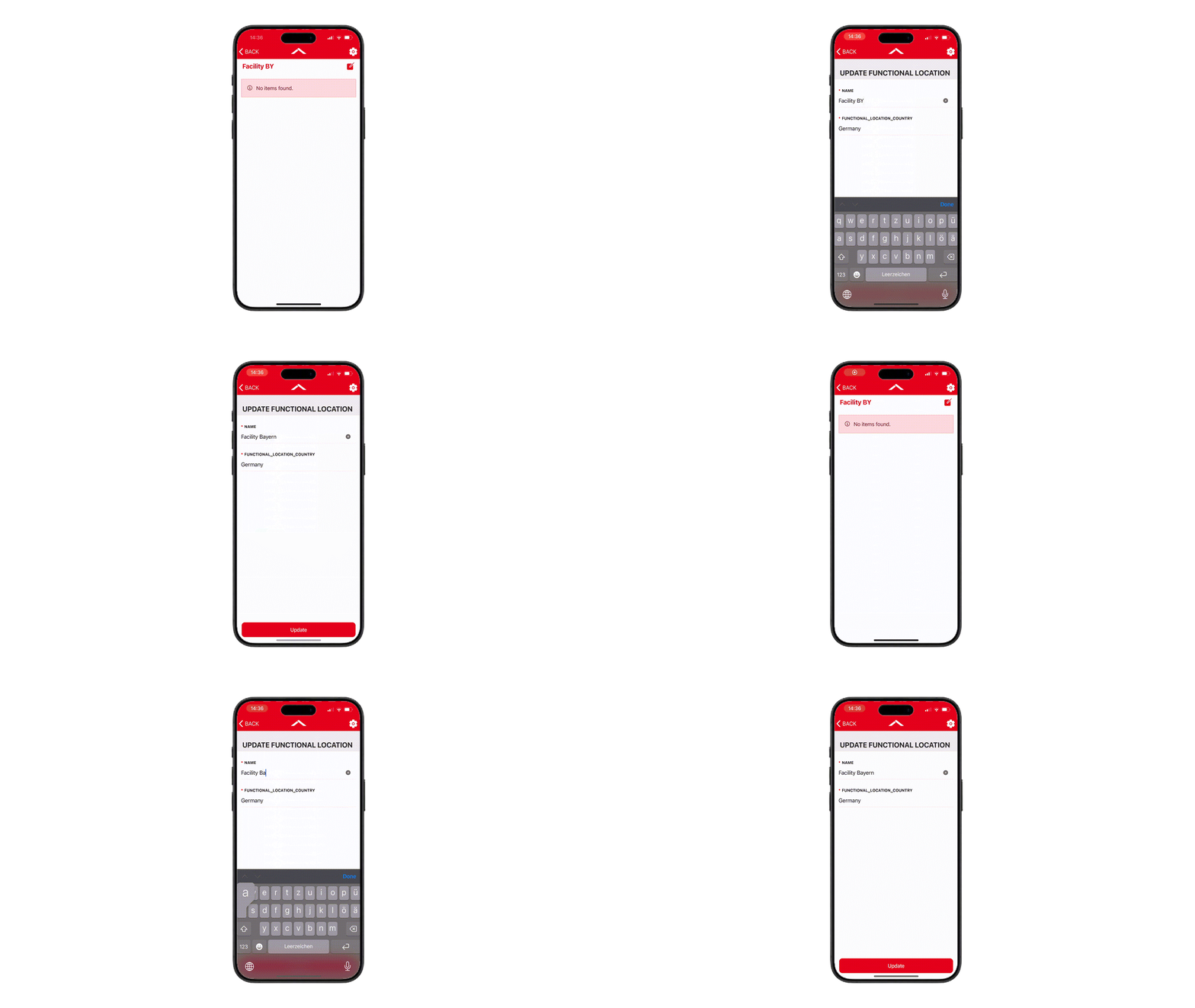
In the Inspection+ App, functional locations can be renamed.
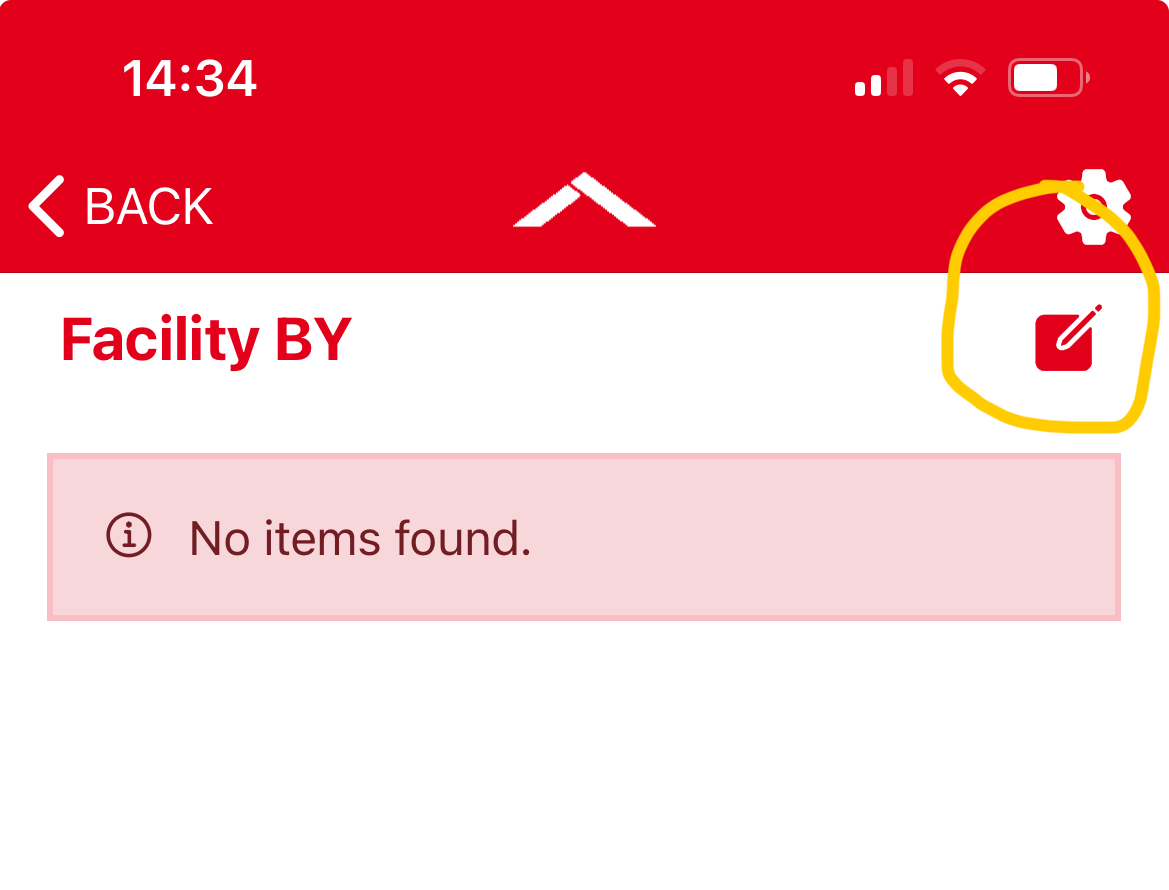
To do this, open the required functional location (for example via the "Functional Locations" menu in the navigation bar) and select the desired functional location. An "Edit" icon will then appear next to the name of the functional location. Selecting this icon allows the name of the functional location to be changed.
Frequently Asked Questions (FAQ)
How can I display subordinate functional locations?
The highest-level functional location is displayed in the "Functional Locations" tab. By clicking the arrow (↓) on the right-hand side, subordinate functional locations can be displayed and selected.
After opening a functional location, the assigned equipments can be viewed.
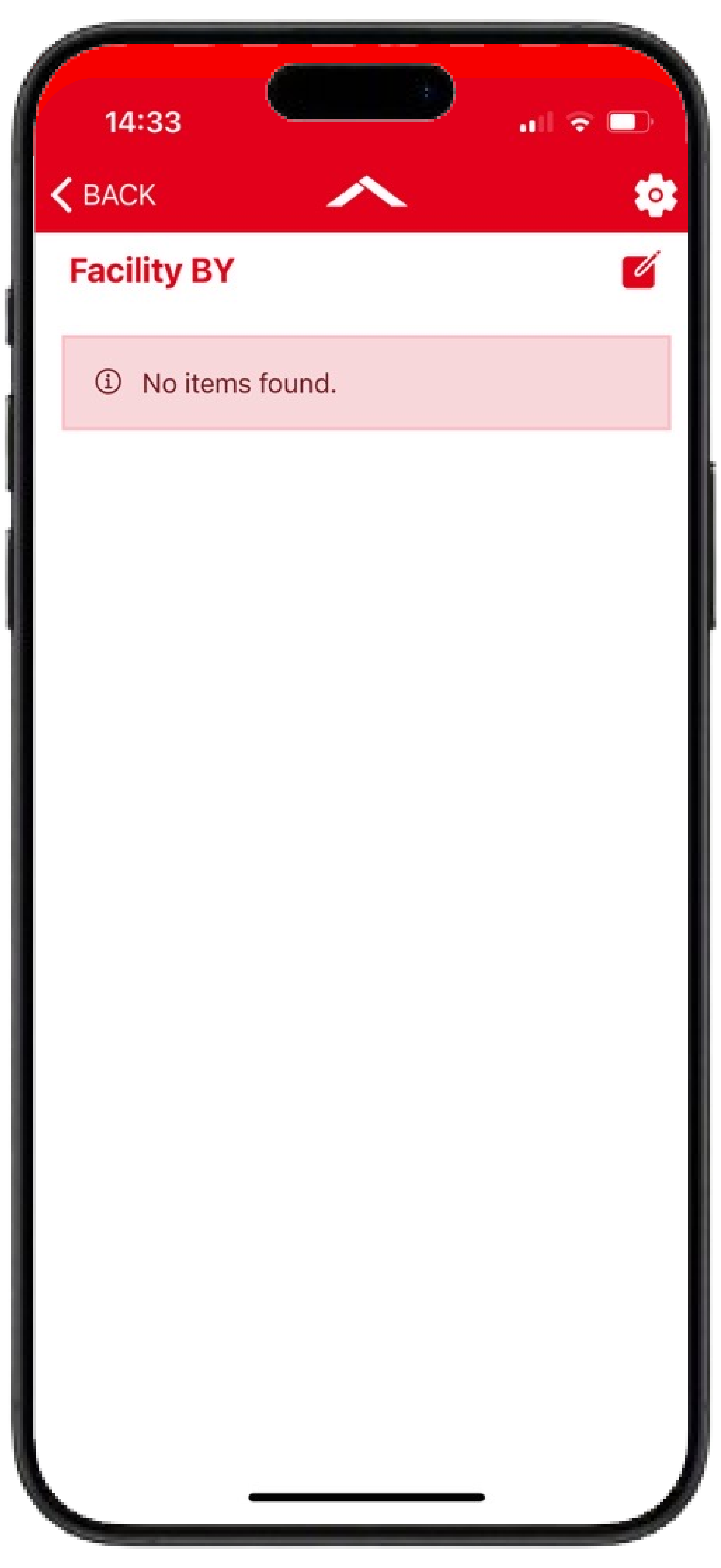
Why is the message "No items found" displayed?
This message is displayed when no equipments are assigned to the selected functional location.
Can I rename a functional location?
Yes. Detailed instructions can be found in the Edit Functional Locations section.