.jpg)
Perform Inspections
Inspections are performed directly on the corresponding equipment.
To do this, open the desired equipment and select "Add Inspection".
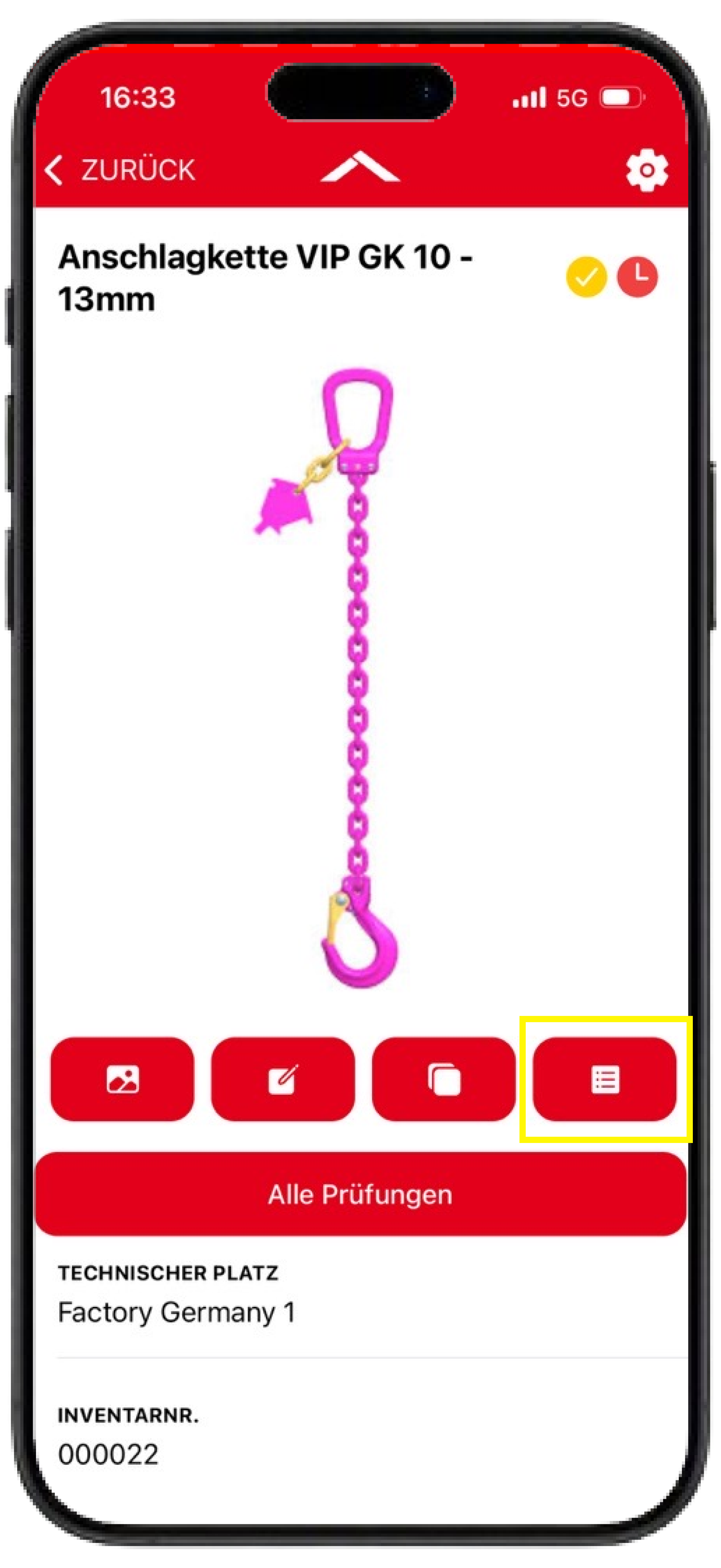
The inspection screen is divided into two sections:
-
Inspection-relevant information (upper section/box)
-
Additional documentation (lower section)
Inspection-relevant information
The upper section - separated by a box - contains all information required to perform the inspection.
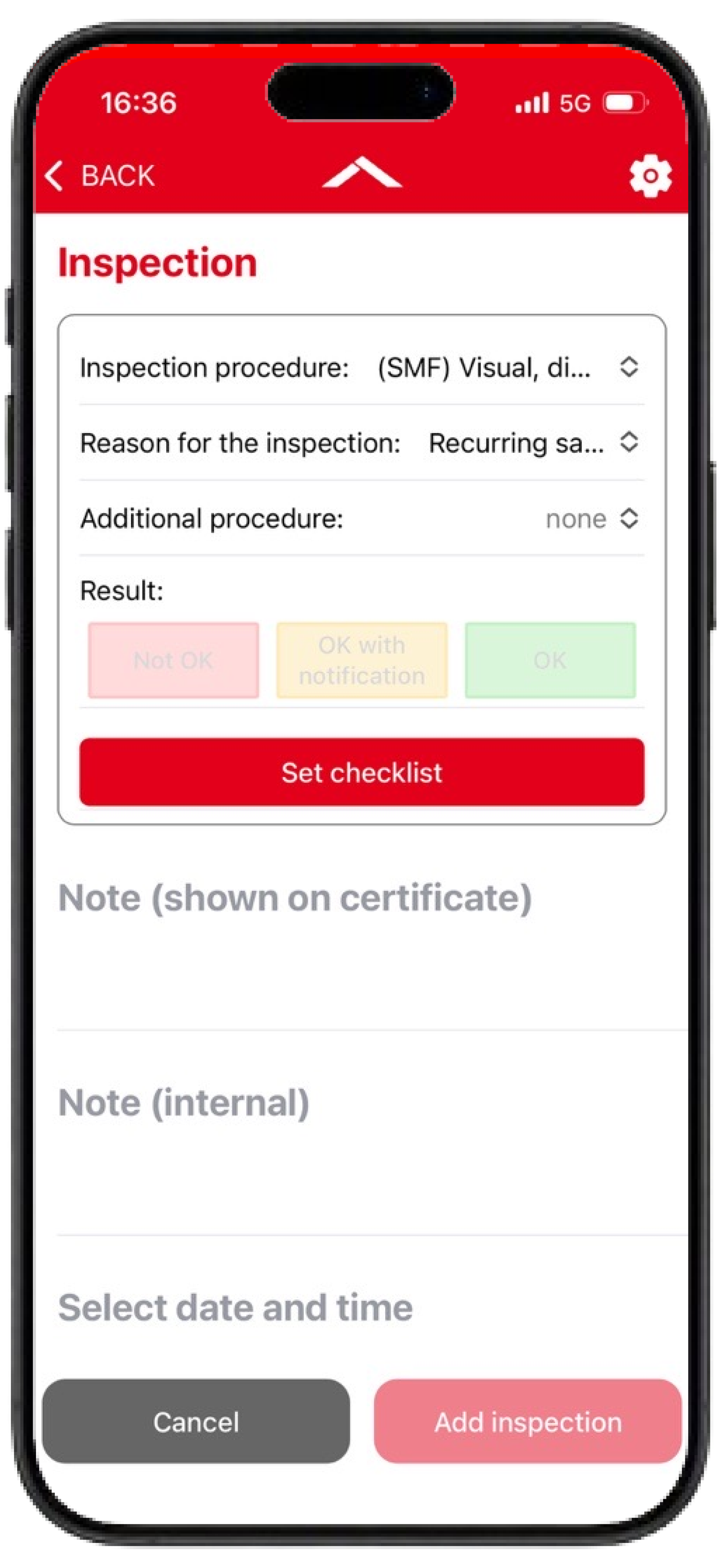
Select inspection procedure
The inspection procedure that is performed in this inspection must be selected first.
The visual, dimensional, functional inspection (SMF) is always preselected as default.
Only inspection procedures for which a checklist exists for the selected object type are displayed. If no checklist has been configured for a specific inspection procedure, it cannot be selected as the primary inspection procedure.
Reason for Inspection
The reason for the inspection can be specified afterwards. This documents why the inspection is being performed (e.g. recurring inspection).
By default, "Recurring safety inspection" is selected.
Additional options include:
-
Written scheme
-
Inspection after exceptional circumstances
-
Inspection after repair
-
Inspection after modification
-
Inspection before first use
Additional Inspection Procedure
If multiple inspection procedures are to be performed within a single inspection, an additional inspection procedure can be selected.
This allows combined inspections to be documented at once, for example when several inspection procedures with different inspection intervals are due at the same time for one equipment.
At this point, any inspection procedure available in the system can be selected, similar to an inspection performed in the Equipment Portal.
Important limitations for combined inspections:
-
Only one inspection result can be recorded for the entire inspection. Therefore, an additional inspection procedure should only be selected if the inspection result applies to both inspection procedures.
-
Only the checklist of the primary inspection procedure is displayed. No separate checklist is opened for the additional inspection procedure.
-
A separate certificate is generated for the additional inspection procedure.
-
Inspection images and remarks are only displayed on the certificate of the primary inspection procedure.
Inspection Result
The following inspection results are available:
-
OK
-
OK with notification
-
Not OK
Complete a checklist
The inspection checklist can then be opened and completed using the "Set checklist" button.
If the inspection result "OK with notification or "Not OK" is selected, the checklist opens automatically. In this case, at least one checklist item must be evaluated with the corresponding result before the inspection can be saved.
If the inspection result "OK" is selected, the checklist opens automatically only if it contains mandatory fields. Otherwise, it must be opened manually.
Additional Information
Additional information can be documented below the inspection-relevant information section.
Note (shown on certificate)
This field can be used to document notes that should also appear on the inspection certificate.
Note (internal)
This field is intended for internal documentation.
Information entered here is not displayed on the certificate and is only included in the inspection list.
Select date and time
By default, the current date and time are preselected automatically.
These values can be adjusted if required. Retrospective dates and times are also supported.
Inspection Images
One or more images can be added to the inspection.
Images can either be taken directly within the app or selected from the device gallery. If an image is added using the "Take Picture" function, the image is also stored in the device gallery.
The images are linked to the inspection and displayed on the certificate.
Add Inspection Images Later
Inspection images can also be added to an already completed inspection.
To do this, open the inspection through:
-
"Your Inspections"
-
"Inspections Performed Within the Order"
-
"All Inspections" directly on the equipment
After adding an image, it is immediately listed within the inspection documents.
To include the image in the certificate, the app must be synchronized. After synchronization, the image is also attached to the certificate.
Save Inspection
After saving, the inspection is assigned to the equipment and is available under "All Inspections" on the equipment as well as in the sections "Your Inspections" and "Inspections Performed Within the Order".
Certificates
Certificate creation
After an inspection has been completed, an inspection certificate is automatically generated. Like the inspection itself, the certificate is initially stored locally within the app and is transferred to the portal during the next synchronization.
Further information about inspections and certificates in the Equipment Portal can be found here.
Access Inspection Documents and Certificates
Inspection certificates can be viewed directly within the app after an inspection has been completed.
Via the Equipment
Using the "All Inspections" button on the equipment, the complete inspection history of an equipment can be viewed. This includes all previous inspections as well as the associated certificates, inspection images and documents.
Further information can be found on the page Equipments in the Inspection+ App.
Via "Your Inspections" and "Inspections in Order"
Alternatively, completed inspections can be accessed through the "Your Inspections" and "Inspections in Order" tiles.
After opening an inspection, the associated inspection documents, inspection images and certificates are also available.
This option is particularly useful for quickly accessing recently completed inspections without first having to locate the corresponding equipment.
Certificate content
The inspection certificate contains the information documented during the inspection as well as the associated equipment data. It generally corresponds to the certificate generated for an inspection performed through the Equipment Portal.
The only difference is that certificates generated from the app may additionally contain:
-
Remarks from the field "Note (shown on certificate)"
-
Inspection images added during the inspection
-
Evaluated checklist items including related comments
Certificates for Combined Inspections
If an additional inspection procedure is selected within an inspection, a separate certificate is generated for each inspection procedure.
Inspection images and notes are displayed only included on the certificate of the primary inspection procedure.
Checklists
Checklists provide structured documentation of an inspection and supplement the selected inspection result with additional information.
Different checklists can be configured for different object types and inspection procedures. The checklists used in the Inspection+ App are maintained and provided by Carl Stahl.
Individual customization of checklists by users is currently not supported.
Checklist Structure
Checklists can contain different types of checklist items.
Most commonly, evaluation fields are used in which a checklist item can be rated as:
-
OK
-
OK with notification
-
Not OK
After evaluating a checklist item, an additional comment can also be documented.
Furthermore, checklists may contain other input types:
-
Dropdown selection with predefined values
-
Numeric field for numerical input
-
Range field for entering values to visualize a range
Note on the Use of Checklists
The checklists provided in the Inspection+ App are intended to support a structured and traceable inspection process. They are professionally maintained and continuously developed by Carl Stahl.
However, responsibility for performing, evaluating and documenting an inspection always remains with the inspector or qualified person. The provided checklists support the inspection process but do not replace professional judgment for the specific application.
Carl Stahl does not warrant that the provided checklists are complete for every individual use case or inspection scenario.
Frequently Asked Questions (FAQ)
How can I inspect equipments with the status "End of Life"?
An inspection cannot be performed while the equipment has this status. The "Add Inspection" button is disabled.
The equipment must first be reactivated, by changing the status.
Why does the checklist not appear?
If the inspection result "OK" is selected, the checklist is only displayed automatically if the configured checklist contains mandatory fields. Otherwise it has to be opened manually.
You find more details on that in this section: https://help.carlstahl.com/EN/inspections-and-certificates-in-inspectionplus#Complete-a-checklist
Why can't I select an inspection procedure?
The Inspection+ App only displays inspection procedures for which an individual checklist has been configured for the corresponding object type.
If no checklist is configured, the inspection procedure cannot be selected for that object type and inspection procedure combination.
Why does equipment still appear as due for inspection after being inspected?
If multiple inspection procedures are assigned to an equipment, the entire equipment remains due for inspection until none of the assigned inspection procedures are overdue.
If only one of several inspection procedures has been completed, the equipment may still appear as due for inspection.
Can I edit an incorrect inspection afterwards?
An inspection cannot be deleted or changed after it has been saved.
A correction is therefore only possible by performing a new inspection and entering the corrected information.
The most recently documented inspection then becomes the valid inspection.
Can old certificates and inspection history be displayed in the Inspection+ App?
Yes. The complete inspection history of an equipment can be viewed in the Inspection+ App.
Further information can be found on the page Equipments in the Inspection+ App.
Can images be added to old inspections or certificates for documentation purposes?
Yes. Images can also be uploaded to inspections after they have been completed.
See the section Add Inspection Images Later above.
Why is the date 00.00.0000 displayed for an inspection?
This is related to the inspection order.
Further information can be found in the section Inspection Orders in the Inspection+ App.