.jpg)
What are inspection orders?
Inspection orders form the foundation for working with the Inspection+ App.
Unlike the Equipment Portal or the predecessor application Inspection App, access within the Inspection+ App is not controlled through a fixed assignment of organizations or Functional Locations to a user account. Instead, access is controlled through Inspection Orders.
Access Without an Inspection Order
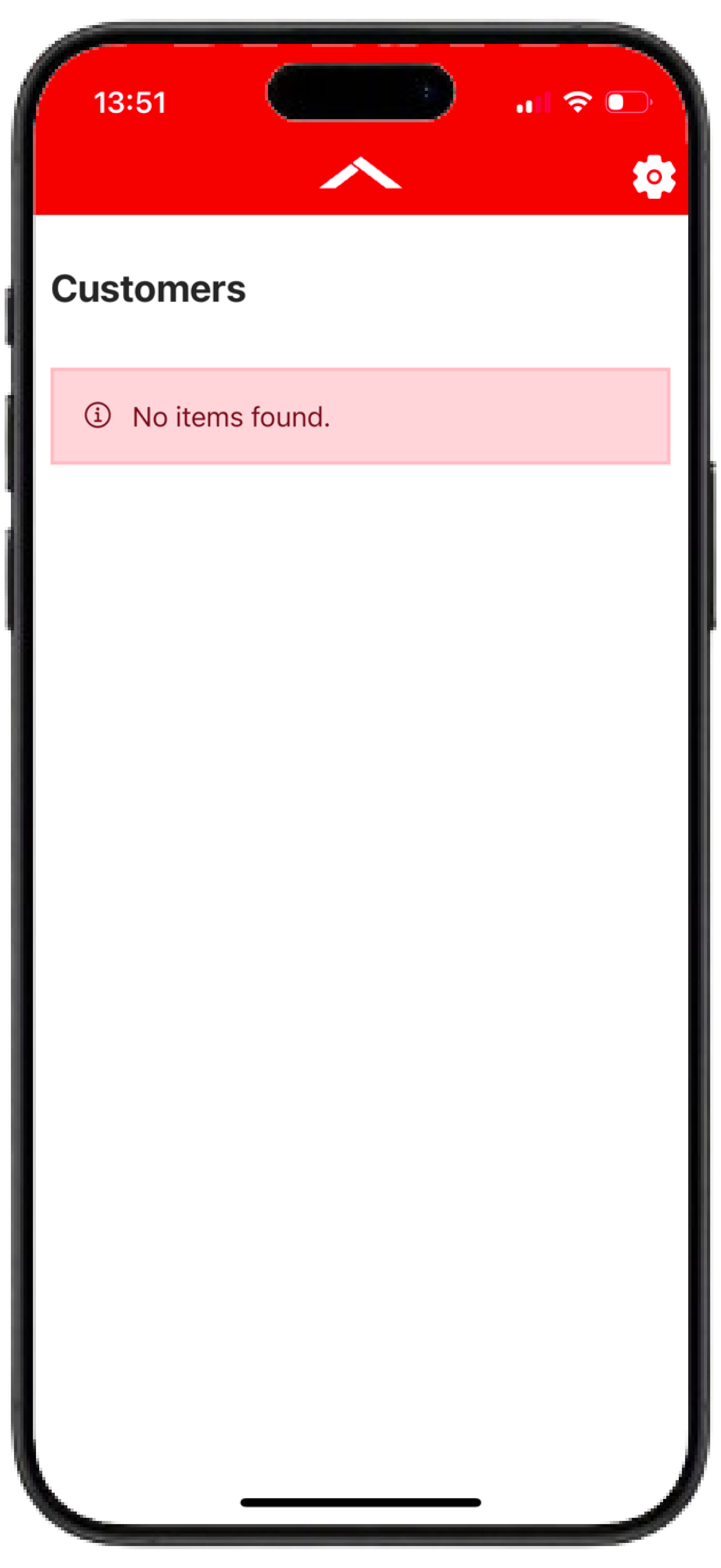
Without a released Inspection Order, a user with the according rights can log in to the app but has no access to an organization and cannot view any Equipments, Functional Locations or other content.
Access With an Inspection Order
A user only gains access to the assigned organization and can begin working within the app once they have been assigned to an Inspection Order.
The Equipments and Functional Locations assigned to the Inspection Order are primarily used for planning and providing an overview of the inspection. For example, they influence various metrics and dashboard tiles. However, they do not restrict access within the organization to only these objects.
Flexible Inspection Execution
Once an Inspection Order has been assigned to a user, the user gains access to the data of the associated organization and can also view and edit additional Equipments and Functional Locations within that organization.
This allows inspections to be carried out flexibly without requiring a new Inspection Order for every adjustment or addition.
Working with Inspection Orders
Opening an Inspection Order
After logging in, all Inspection Orders assigned to the user account are displayed.
Assigned Inspection Orders are initially listed under "Available Orders". To perform inspections, an Inspection order must first be opened.
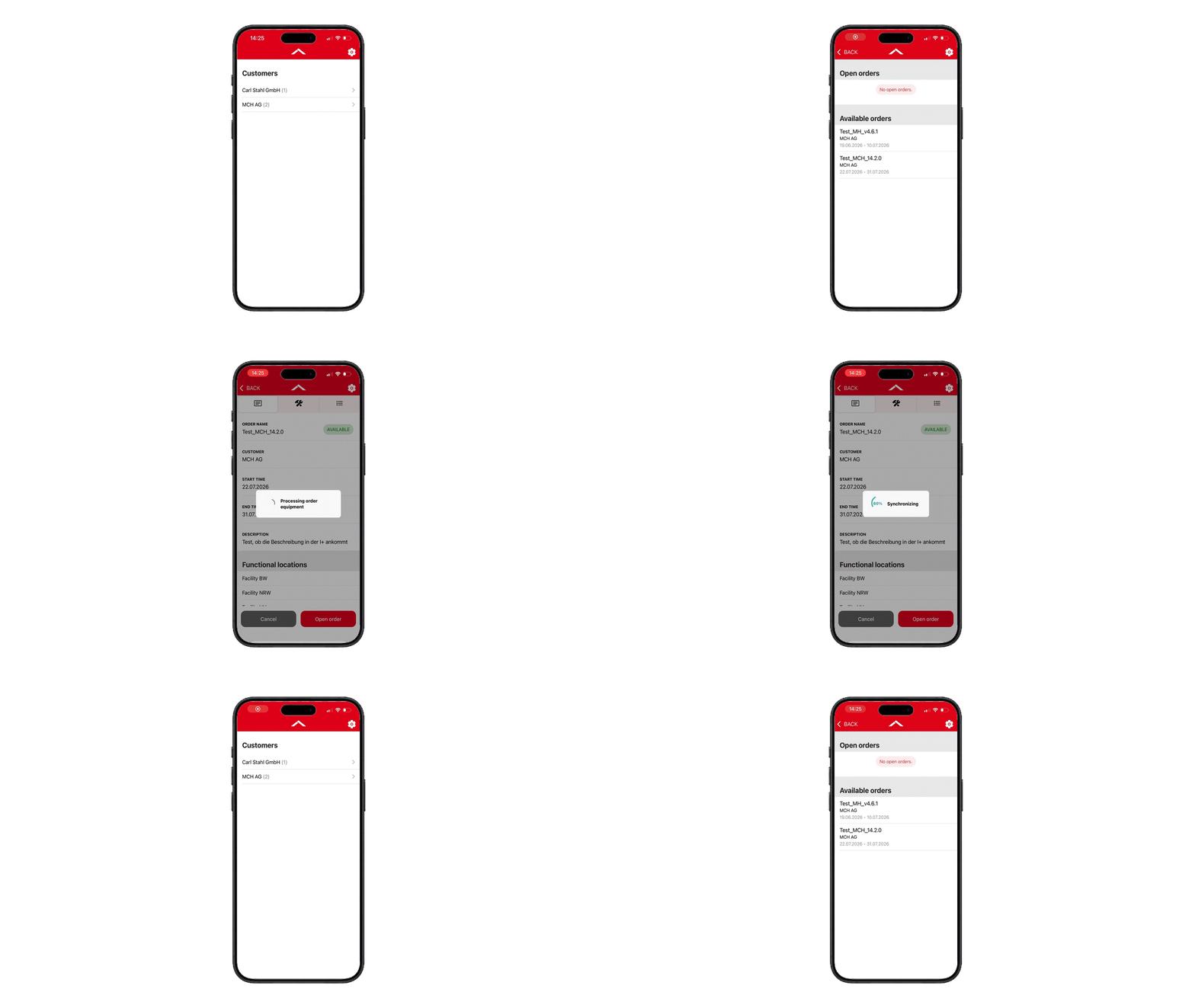
Once opened, all information within the app relates to the currently opened Inspection Order, including:
-
Dashboard metrics
-
The tiles "Equipments Assigned for Inspection" and "Functional Locations Assigned for Inspection"
-
Performed inspections and inspection results
Status of an Inspection Order
An Inspection Order can have different processing statuses:
|
Status |
Description |
|---|---|
|
Available |
The Inspection Order has been released, can be opened and is displayed under "Available Orders". |
|
Open |
The Inspection Order has been opened and is currently being worked on. It is displayed under "Open Orders". |
|
Closed |
The Inspection Order has been completed by the respective inspector and is removed from the order overview and archived in the backend. |
Inspection order doesn’t disappear after closing?
If multiple inspectors are assigned to an Inspection Order, the order is only considered fully completed once all assigned inspectors have completed their part of the Inspection Order. Until then, the order remains visible in the app.
Further information can be found in the section Completing an Inspection Order.
Multiple Inspectors Within an Inspection Order
An Inspection Order can be assigned to multiple inspectors at the same time. This allows several users to work within the same Inspection Order and perform inspections.
Dashboard Metrics with Multiple Inspectors
For this reason, the dashboard displays the metrics "Your Inspections" and "Inspections Performed Within the Order" separately.
Further information about these metrics can be found on the page Dashboard Inspection+ App.
Order Status with Multiple Inspectors
The status of an Inspection Order always relates to the currently logged-in user. Therefore, the same Inspection Order can have different statuses for different inspectors.
Example:
-
Inspector A has already opened the Inspection Order → Order status "Open"
-
Inspector B has not yet opened the Inspection Order → Order status "Available"
The status of individual inspectors can be viewed in the backend.
Creating and Managing Inspection Orders
Requirements
To create and manage Inspection Orders, the "I+ Admin (Standard)" Permission Group is required.
The corresponding permission is part of the Premium Package and is assigned by Carl Stahl.
If you have the Premium Package and would like to manage Inspection Orders and access to the Inspection+ App yourself, please contact your Carl Stahl representative.
Creating and Managing Inspection Orders
Inspection Orders are created and managed through the backend.
Authorized users can assign inspectors, equipments, functional locations and additional information to an inspection order.
Once released, the inspection order automatically becomes available to the assigned inspectors within the Inspection+ App.
Detailed information about creating and managing Inspection Orders can be found in Inspection orders in the backend.
Safety Check / Risk Assessment
An optional Safety Check or Risk Assessment can be assigned to an inspection order.
The Safety Check is used to confirm safety-related information before an inspection begins and to ensure that all required safety requirements are considered.
Safety Check When Opening an Inspection Order
If a Safety Check has been assigned to an inspection order, it is automatically displayed when the inspection order is opened for the first time.
The inspection order can only be used after the Safety Check has been confirmed.
The result of the Safety Check has no impact on the documentation of the subsequent inspection. The inspection order can still be opened even if warnings or negative evaluations are recorded.
If the same inspection order is opened again later, the Safety Check does not need to be completed again.
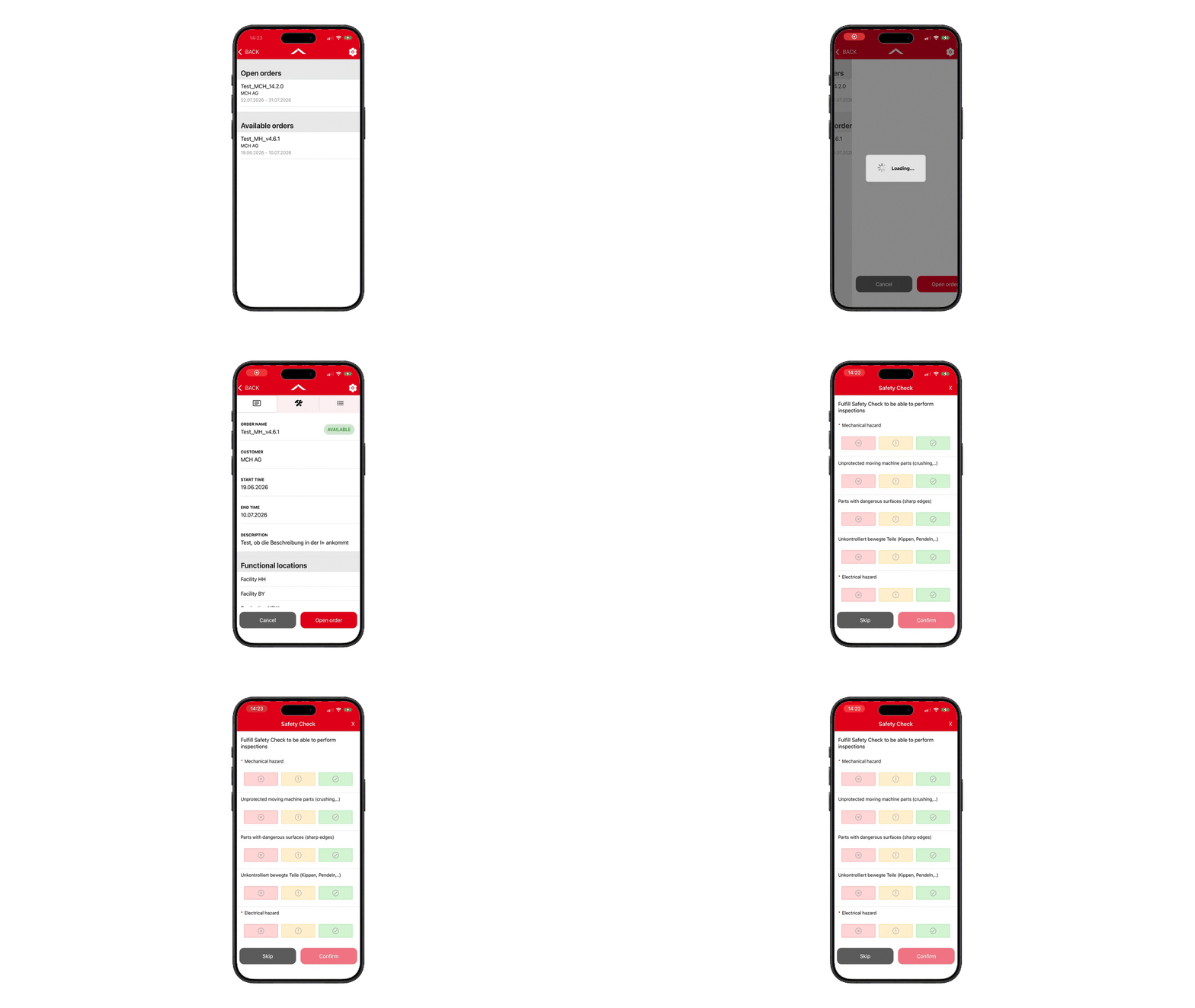
Structure of a Safety Check
A Safety Check follows the same principle as an inspection checklist.
The individual checklist items are not used to assess equipments but rather to capture and confirm safety-related information about the working environment.
Currently, a standard Risk Assessment is available as a Safety Check.
To complete the Safety Check and open the inspection order, at least all mandatory checklist items must be evaluated.
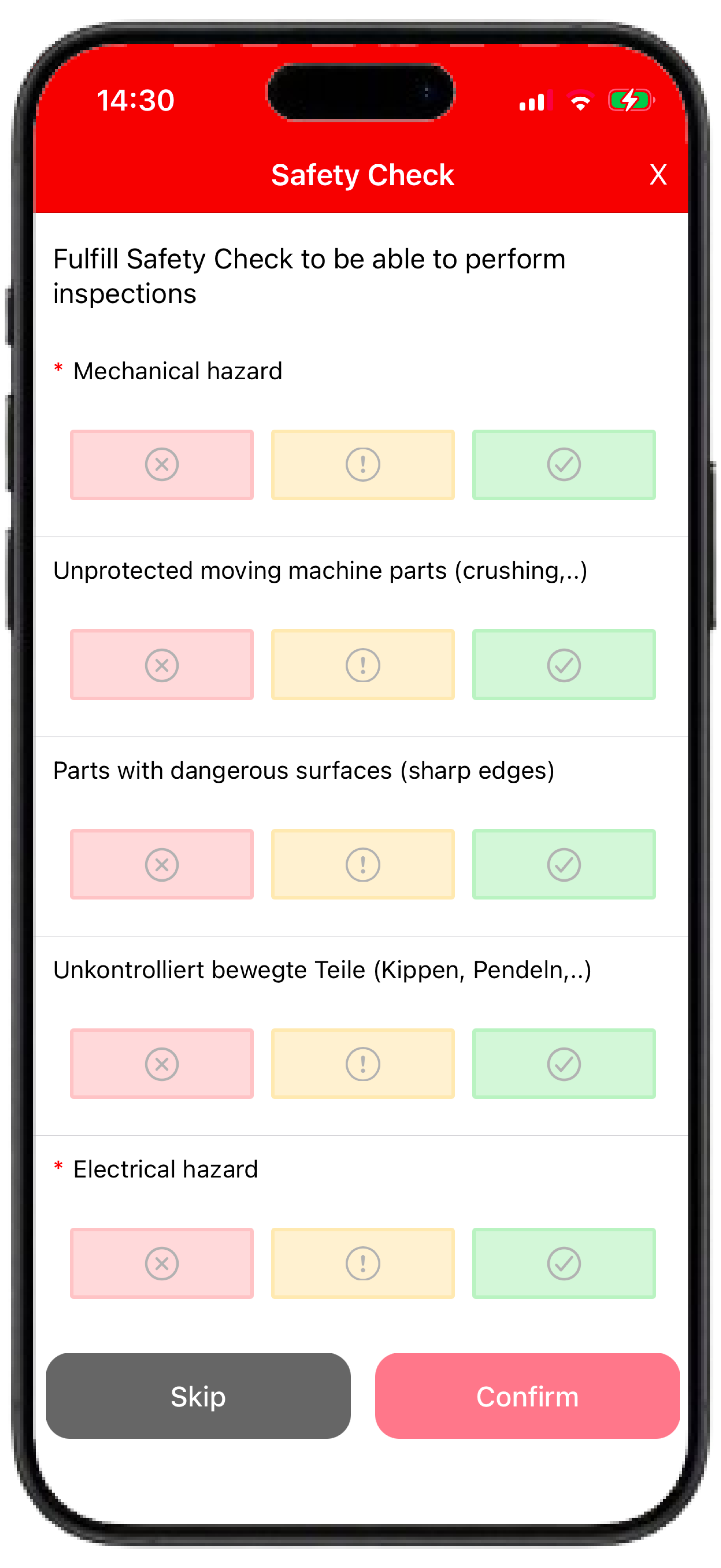
Safety Check and Inspectors
If multiple inspectors are working within the same inspection order, each inspector must confirm the Safety Check individually before beginning inspections within the order.
The Safety Check results are stored separately for each inspector and can be reviewed later in the backend.
Further information regarding the evaluation and documentation of Safety Checks can be found in Inspection orders in the backend.
Completing an Inspection Order
Once all inspections within an order have been completed, the inspection order can be closed.
Completing an Inspection Order with Multiple Inspectors
Each inspector closes the inspection order individually.
If an inspector closes the inspection order, it still remains available for all other assigned inspectors.
The inspection order is only considered fully completed once all assigned inspectors have completed their work and closed the inspection order. Only then it will be removed from "Available Orders" and archived in the backend.
Inspection List After Completion
After an Inspection Order has been completed, an inspection list is automatically generated as an Excel file and sent by email to both the inspector and the creator of the order.
The language of the Excel file depends on the language setting of the respective inspector.
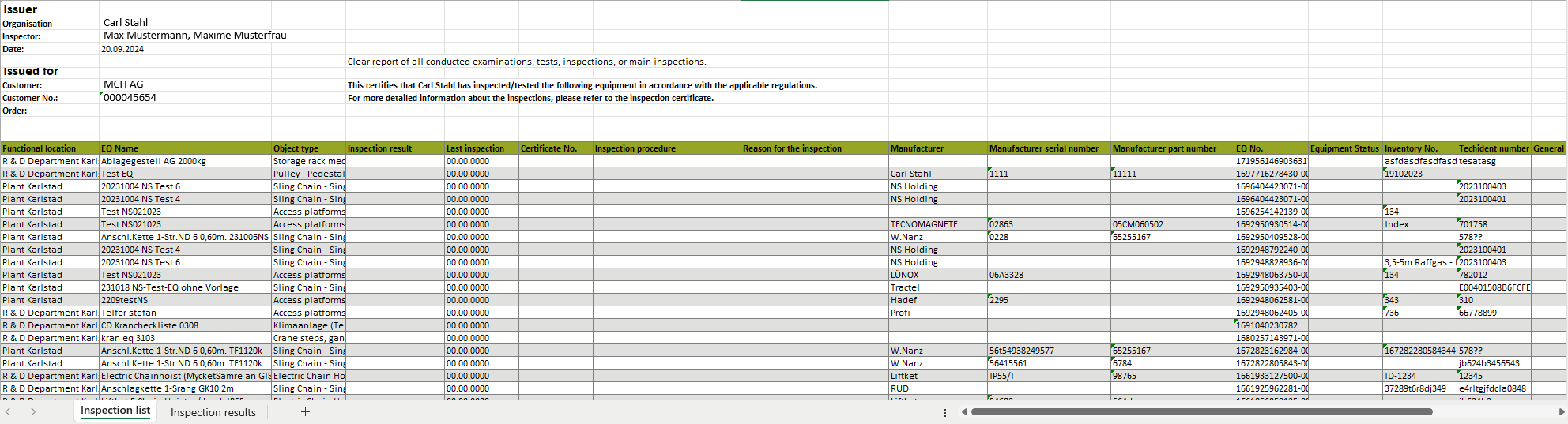
The inspection list provides an overview of the inspections performed and the documented inspection results within the inspection order and consists of two worksheets.
Worksheet: "Inspection List"
The "Inspection List" worksheet contains an overview of all equipments inspected during the order, including the documented inspection results.
Equipments assigned to the inspection order but not inspected may also be included.
You can identify them because the date “00.00.0000” is listed under “Last Inspection”
Worksheet: "Inspection Results"
The "Inspection Results" worksheet contains only checklist items with the following results:
-
OK with notification
-
Not OK
Comments added to these checklist items are also displayed.
Checklist items with the result "OK" are not displayed in this worksheet, even if a comment has been added.

Resending the Inspection List
The inspection list can be resent from the backend at a later time if required.
Further information can be found in Inspection orders in the backend.
Frequently Asked Questions (FAQ)
Can an equipment be inspected multiple times within an inspection order?
Yes. An equipment can be inspected any number of times within the same inspection order.
The most recent inspection result is always considered valid.
Why can't I see any equipments or functional locations after login?
If no inspection orders exist or no inspection orders have been released yet, no data can be displayed in the app even though the login was successful.
Further information can be found in the section What are inspection orders?
Tips for printing or converting the Inspection List to PDF
The inspection list can be printed directly from Excel or saved as a PDF.
To ensure all information is displayed correctly, it is recommended to review the print preview and adjust the scaling if necessary before printing or exporting the file.
Can an inspection order be assigned to multiple inspectors?
Yes. An inspection order can be assigned to multiple inspectors at the same time.
All assigned inspectors can work within the same inspection order and perform inspections. The inspection order is only considered fully completed once all assigned inspectors have finished their work.
Why is a closed inspection order still visible?
If multiple inspectors are assigned to an inspection order, the order remains available until all assigned inspectors have completed their work.
Only then the inspection order is removed from the app and archived in the backend.
Does every inspector need to complete the safety check?
Yes. The Safety Check is performed and documented separately for each inspector.
An inspector can only begin carrying out inspections within the inspection order once the Safety Check has been confirmed.