.jpg)
Installation of the “Inspection+ by Carl Stahl”
Downloading the App
The app can be downloaded from the App Store (Apple devices). Open the App Store and search for "Inspection+ by Carl Stahl". Click on the app icon to begin the installation.
Once the app has been downloaded and installed, you can log in using your credentials from the Equipment portal.
The app can be installed on both iPhones and iPads.
Recommended Devices/Hardware
More detailed information about the recommended devices/hardware can be found here.
The Inspection+ App is currently only available for iOS devices not for Android devices.
Access and Login
Access via permission groups
Your user account must be assigned the "Inspection+ App" permission through the Carl Stahl backend system. Only after this role has been assigned you will be able to log in to the app.
Further information about permission groups and their assignment can be found here.
Access is set up by Carl Stahl. If you require access to the Inspection+ App, please contact your Carl Stahl representative.
Logging in to the Inspection+ App
Once the appropriate permission has been assigned to your user account, you can log in to the app using your existing Equipment portal credentials.
The password used for the Portal, Backend, Webshop and mobile applications is the same. If you are unable to log in, you can easily reset your password via the https://www.carlstahl-serviceportal.com
Due to the Single Sign-On (SSO) concept, the new password will automatically apply to all other digital solutions (Equipment portal, Webshop, Inventory App and Inspection+ App), provided that you have the corresponding permissions.
Do not use the App on multiple devices simultaneously
If you use the app on multiple devices (e.g. smartphone and tablet) with the same user account, make sure to log out on one device before using the other.
Failure to do so may result in unexpected behavior. For example, the safety check may not be displayed or may not be completed correctly.
Login Issues
Please perform the following checks in order:
Login Verification and Password Management
-
Test the login in the Equipment portal
Since the same password is used for both the portal and the app, this can be used to verify whether your password is correct. If you can log in to the portal, the login should also work in the app.
-
Reset your password
If you no longer know your portal password (and therefore your app password), use the Forgot Password function on the login screen of the Equipment portal.
Important Note: Passwords must not contain special characters. Please choose a password with at least 8 characters, including numbers, uppercase letters and lowercase letters.
Permission and Support
-
Check user permissions
If the previous steps do not resolve the issue, please contact your user manager with access to the backend. They should verify that the "Inspection+ App" role is assigned to and activated for your user account.
-
Contact your Carl Stahl representative
If the issue persists after completing all previous steps, please contact your Carl Stahl advisor or representative.
Inspection Order Overview After Login
After logging in, Equipments and Functional Locations are not displayed directly. Instead, you will first see an overview of the Inspection Orders assigned to your user account.
Access to Equipments, Functional Locations and other functions within the Inspection+ App are only available through an Inspection Order. Once you have been assigned to an Inspection Order, you will gain access to your organization and can start working with the app.
If no orders are visible, no orders may have been created or released for your user account yet.
Order Management
Inspection orders are managed through the backend system and are created and released by authorized users. Further information about creating and managing orders can be found in the Orders section.
Profile settings
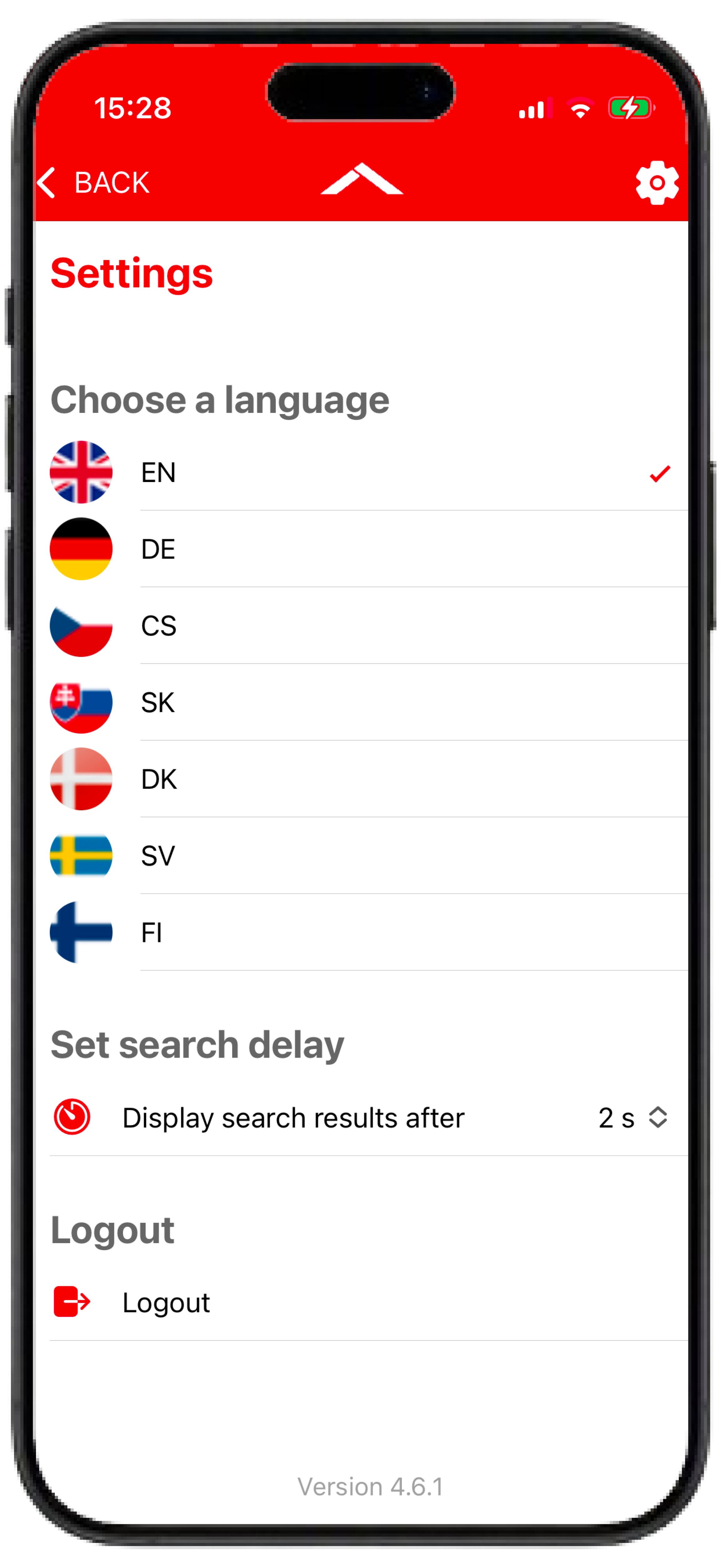
In the profile settings (gear icon in the upper-right corner), you can change the application language.
You can also adjust the “search delay” setting. This feature defines how long the app waits before executing a search after entering a search term, for example when searching for equipment.
Device settings
Ensure that the Inspection+ App has permission to access your device camera. Camera access is required for scanning QR codes and barcodes.
If the camera is not available within the app, camera permissions can be adjusted afterward in your device settings.
Costs/Prices of the Inspection+ App
Further information about the available packages can be found on our Overview.
Do you have questions about the Inspection+ App or would you like to use the solution in your company? Feel free to contact us. Together, we will discuss the available options and support you in setting up the solution that best fits your needs.
Contact: Carl Stahl Locations worldwide