.jpg)
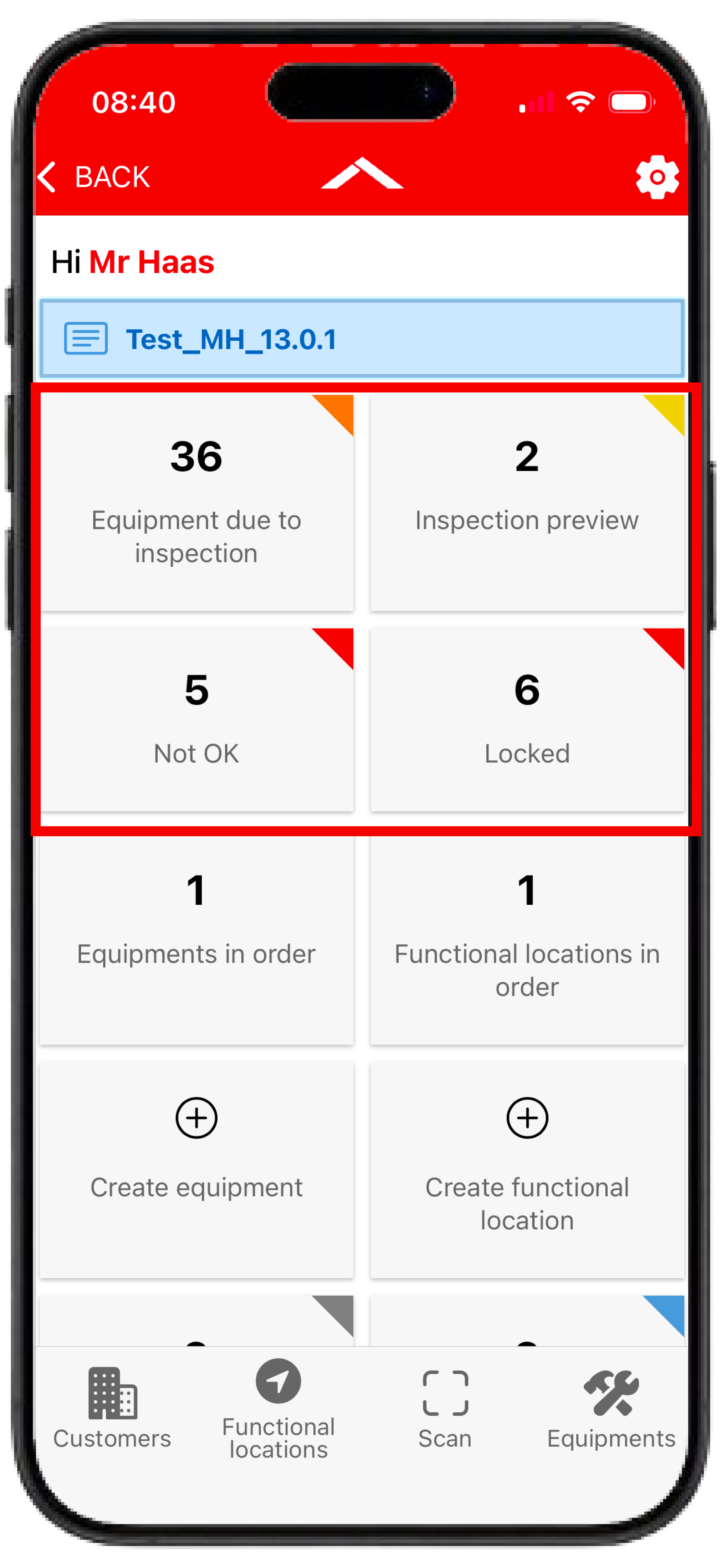
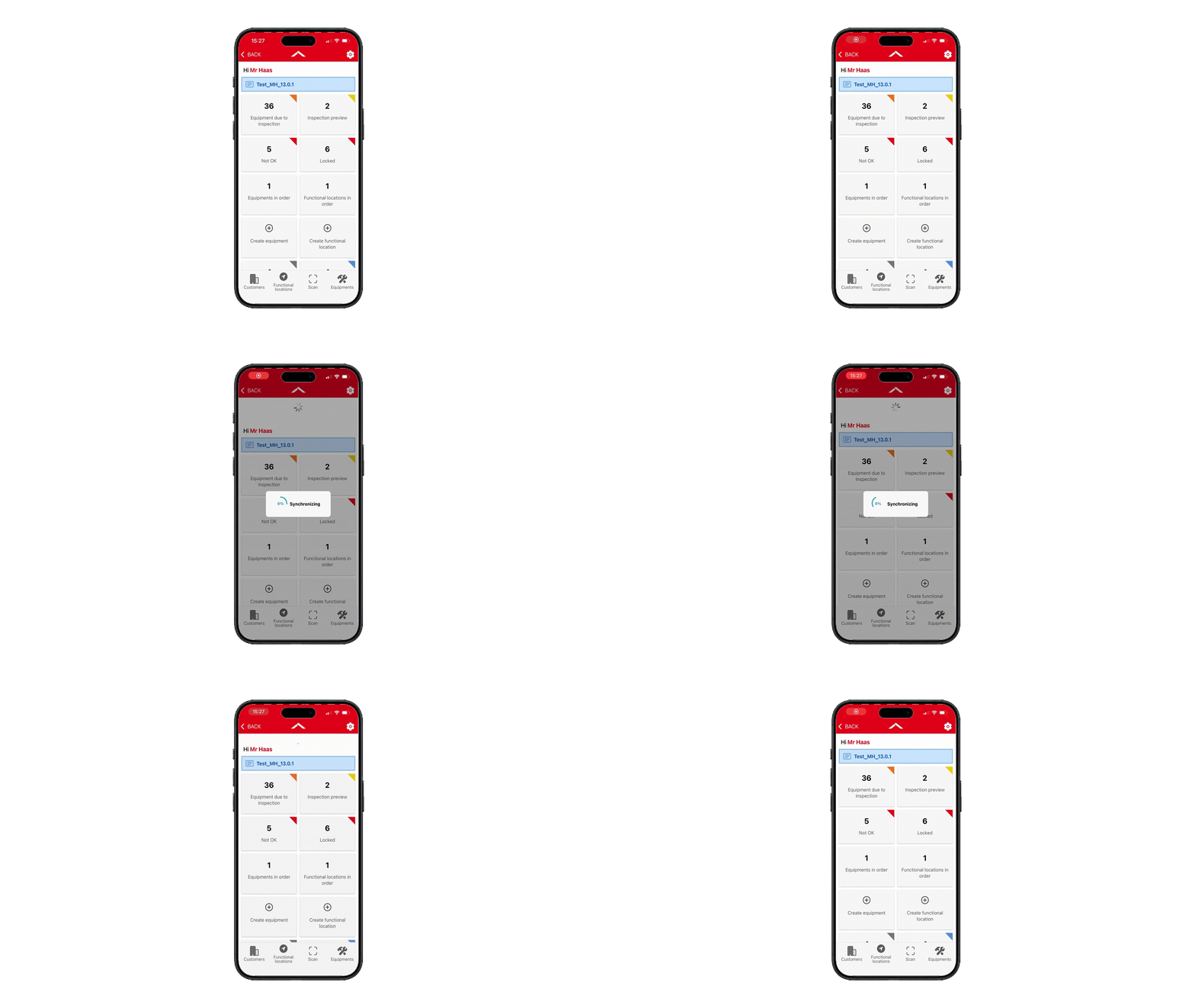
After opening an order, you will be taken to the dashboard. It provides an overview of the most important key figures, objects and functions within the currently opened order.
Most key figures are based on information from the Equipment Portal and are updated during Synchronization.
Dashboard Tiles
Some of the tiles and metrics displayed on the dashboard follow the same principles as the dashboard tiles in the Equipment Portal.
Further information about the meaning and calculation of these metrics can be found in the Dashboad Tiles section of the Equipment Portal.
Due to synchronization processes and the offline functionality, displayed values may temporarily differ between the Inspection+ App and the Equipment Portal. The values should match again after the next synchronization.
Order-Specific Tiles
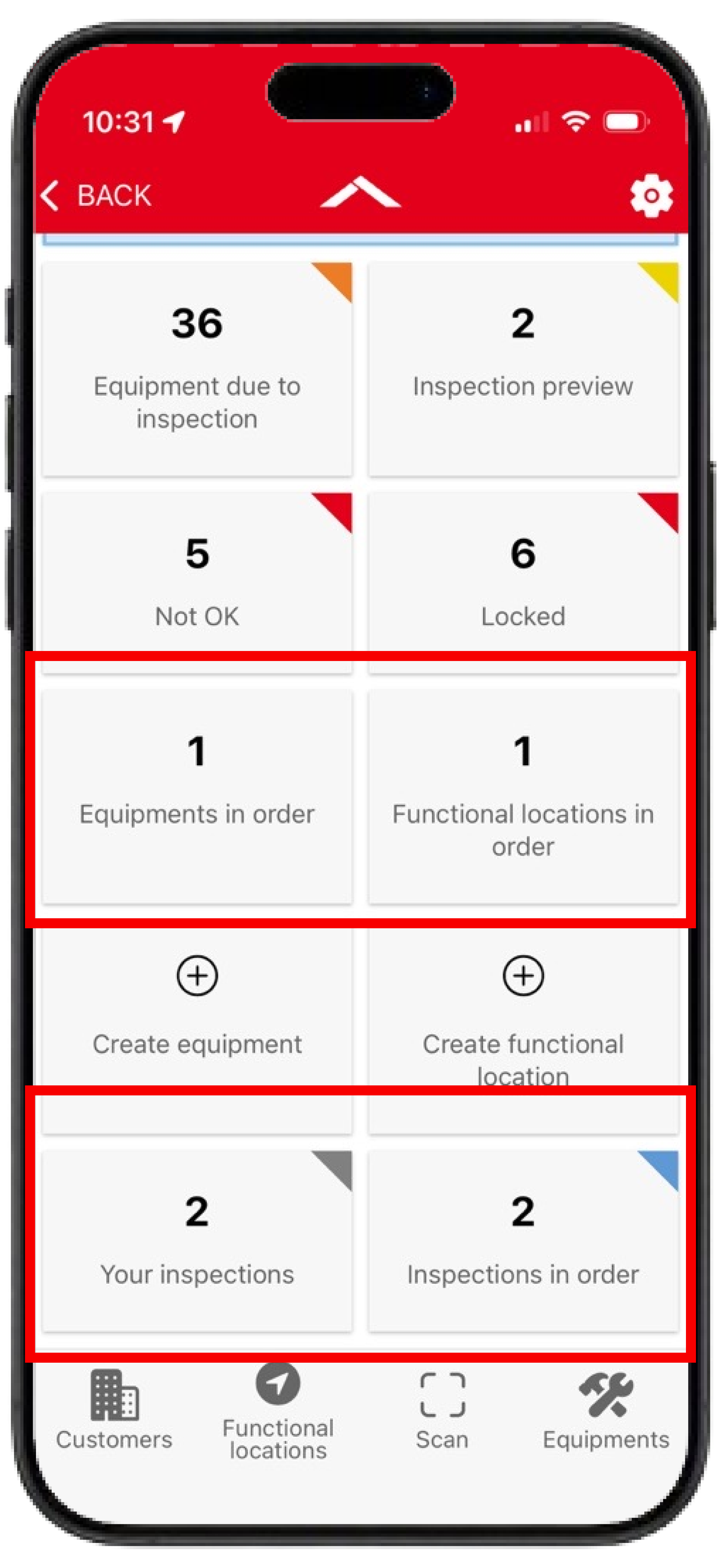
In addition to the standard dashboard metrics, the Inspection+ App provides additional tiles that are related to the currently opened inspection order.
Tile "Equipments in order"
The "Equipments in order" tile displays the number of equipments that have been assigned for inspection in the backend to the currently opened inspection order in the backend.
Tile "Functional locations in order"
The "Functional locations in order" tile displays the number of Functional locations that have been assigned for inspection in the backend to the currently opened inspection order.
Tile "Your inspections"
The "Your inspections" tile displays all inspections performed by the currently logged-in user within the currently opened order.
The information remains available even after logging out and in again.
Tile "Inspections in order"
The "Inspections in order" tile displays all inspections performed within the currently opened order. This also includes inspections carried out by other users working within the same inspection order and may therefore differ from “Your Inspections.”
The displayed values always refer to the currently opened order.
The tile is updated automatically on a regular basis (about every 5 min) or whenever you return to the dashboard from another view. An update can also be triggered manually by pulling down the dashboard.
Functions and Navigation
In addition to key figures, the dashboard provides several functions for editing data and navigation:
Tile "Create equipment"
This tile can be used to create a new Equipment directly from the Dashboard.
Tile "Create functional Location"
This tile can be used to create a new Technical Location directly from the Dashboard.
Navigation Bar
The navigation bar at the bottom of the screen allows you to quickly switch between the main areas of the app.
Customers:
Displays all organizations for which inspection orders are available for the currently logged-in user. In most cases, only your own organization will be displayed.
Functional Locations:
Displays all Functional locations included in the currently opened inspection order. From here, Functional locations can be searched, opened and edited.
Scan
Opens the scanning function of the app. QR codes, barcodes and other supported codes can be scanned to quickly navigate to the corresponding equipment.
Equipments
Displays all Equipments of the currently opened inspection order. Equipments are grouped by object type, similar to the Equipment Portal.
Synchronization (Offline Feature)
The Inspection+ App supports working without a permanent internet connection (Offline Feature). Changes are initially stored locally on the device and are only transferred during synchronization with the Equipment Portal.
Synchronization can be started manually at any time from the dashboard. During synchronization, inspections performed as well as changes to Equipments and Technical Locations are synchronized between the app and the Equipment Portal.
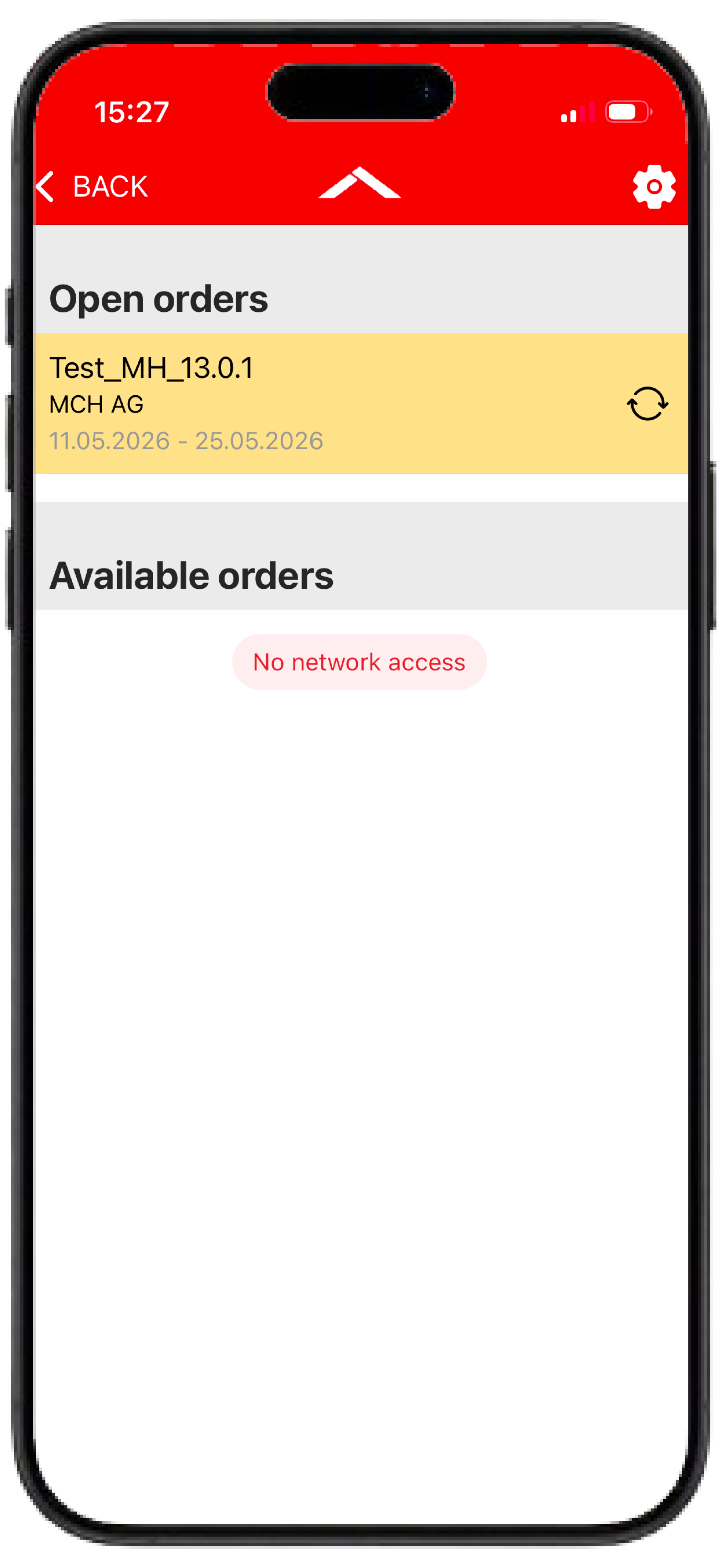
Orders containing unsynchronized changes are highlighted in yellow in the order overview and marked with a synchronization icon. This makes it easy to identify orders that still contain local changes waiting to be synchronized to the Equipment Portal.
Frequently Asked Questions (FAQ)
Search delay too short or too long?
If the search is executed too quickly or too slowly while entering search terms, the search delay can be adjusted in the profile settings.
Further information can be found in the Profile Settings section.
Why does the search return results that doesn’t contain my entered search text?
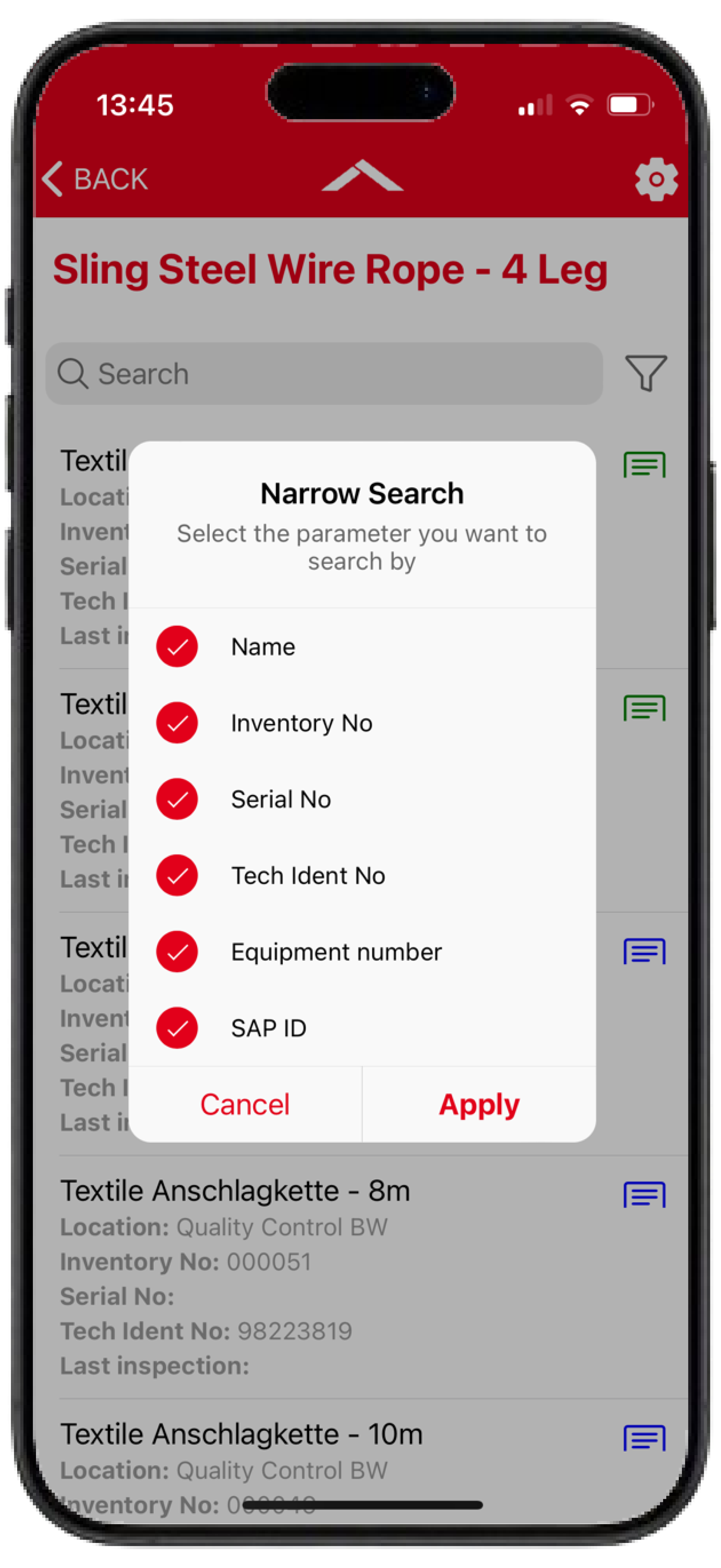
Additional information is displayed below the Equipment name in the search results, such as the Functional location, inventory number, manufacturer serial number, technical identification number and the date of the last inspection. In addition to some of the information displayed there, the search also considers information that is not shown in the search results.
As a result, search results may be displayed even though the entered search term is not directly visible.
The search criteria can be viewed and adjusted using the filter function next to the search field.
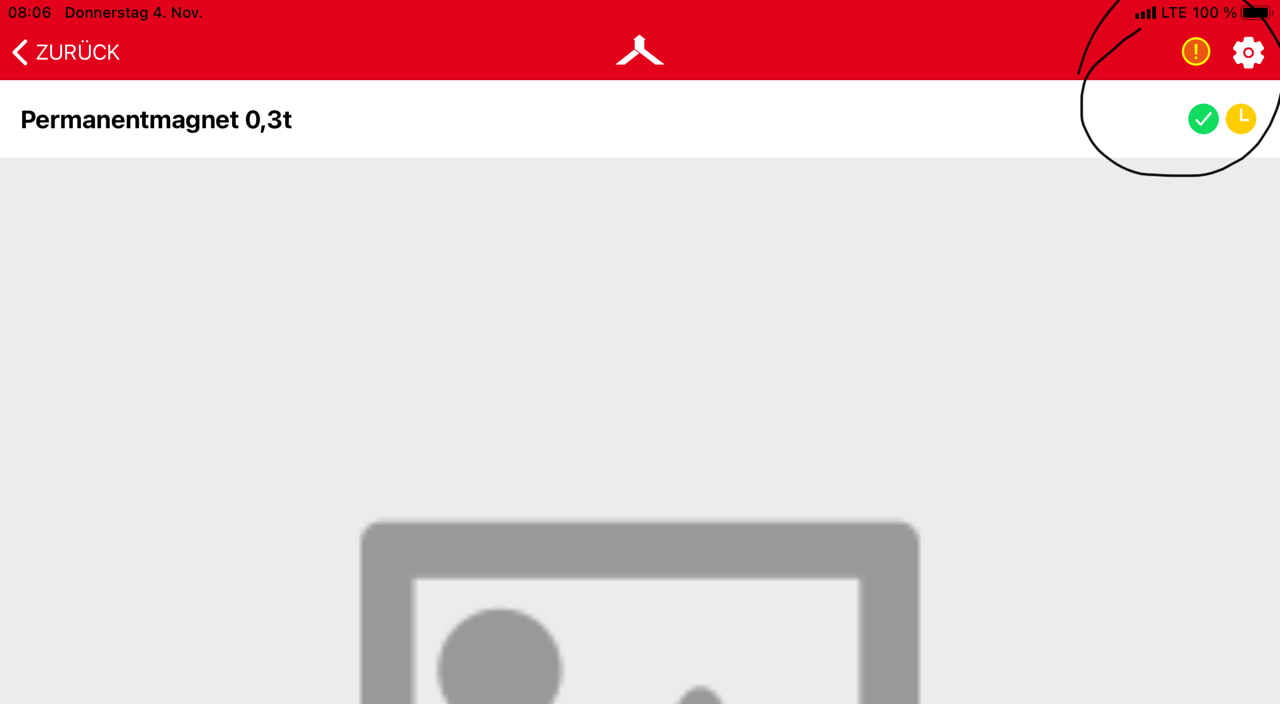
Meaning of the Exclamation Mark "!"
The exclamation mark in the app header indicates a limited or slow internet connection.
During this time, synchronization processes may be delayed or temporarily restricted. As soon as a stable internet connection becomes available again, the symbol will disappear automatically.