.jpg)
Find Equipments
Equipments can be searched for and opened in the Inspection+ App in several ways:
-
via the "Equipments" tab
-
via a Functional Location
-
via the Scan Function
After opening an equipment, all relevant information, documents, inspections and functions for the selected equipment are available.
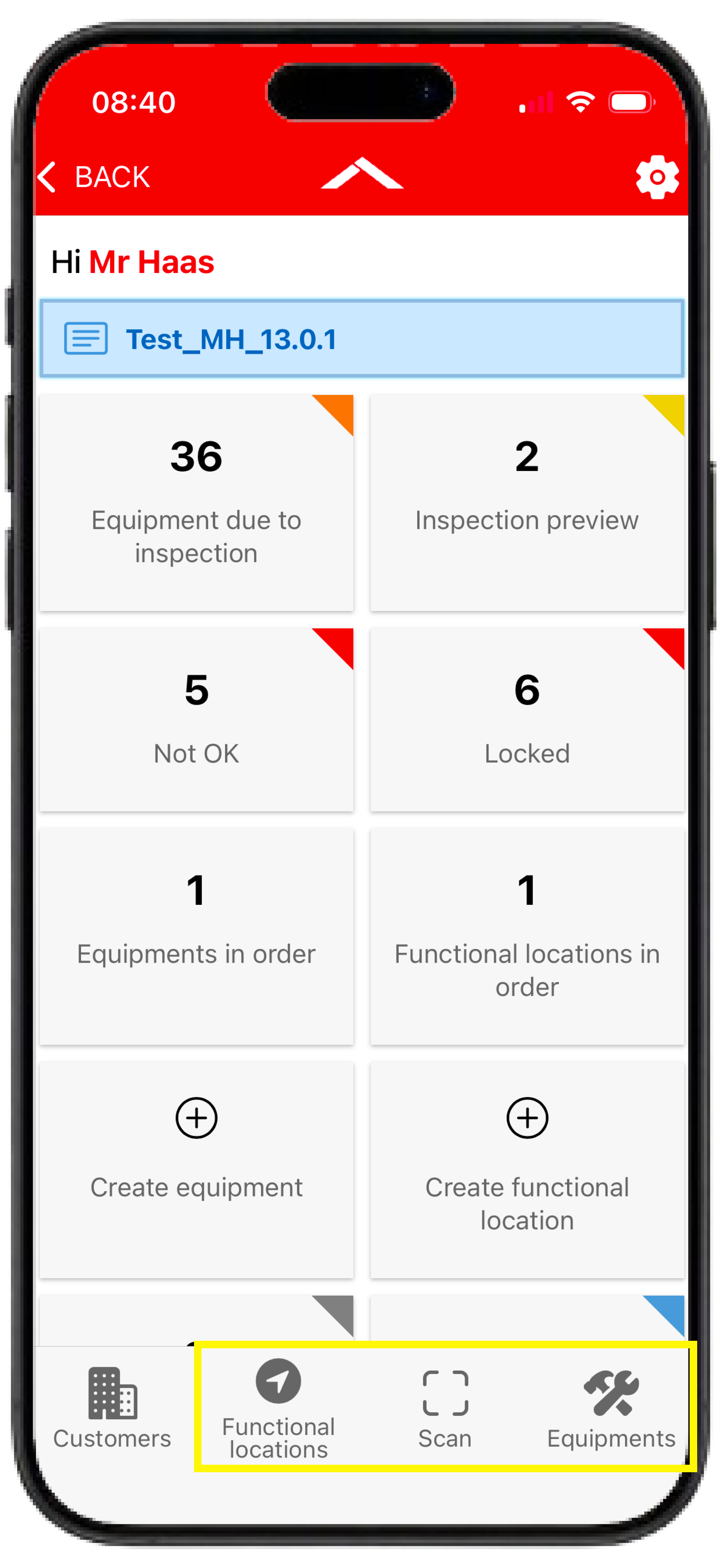
"Equipments" Tab
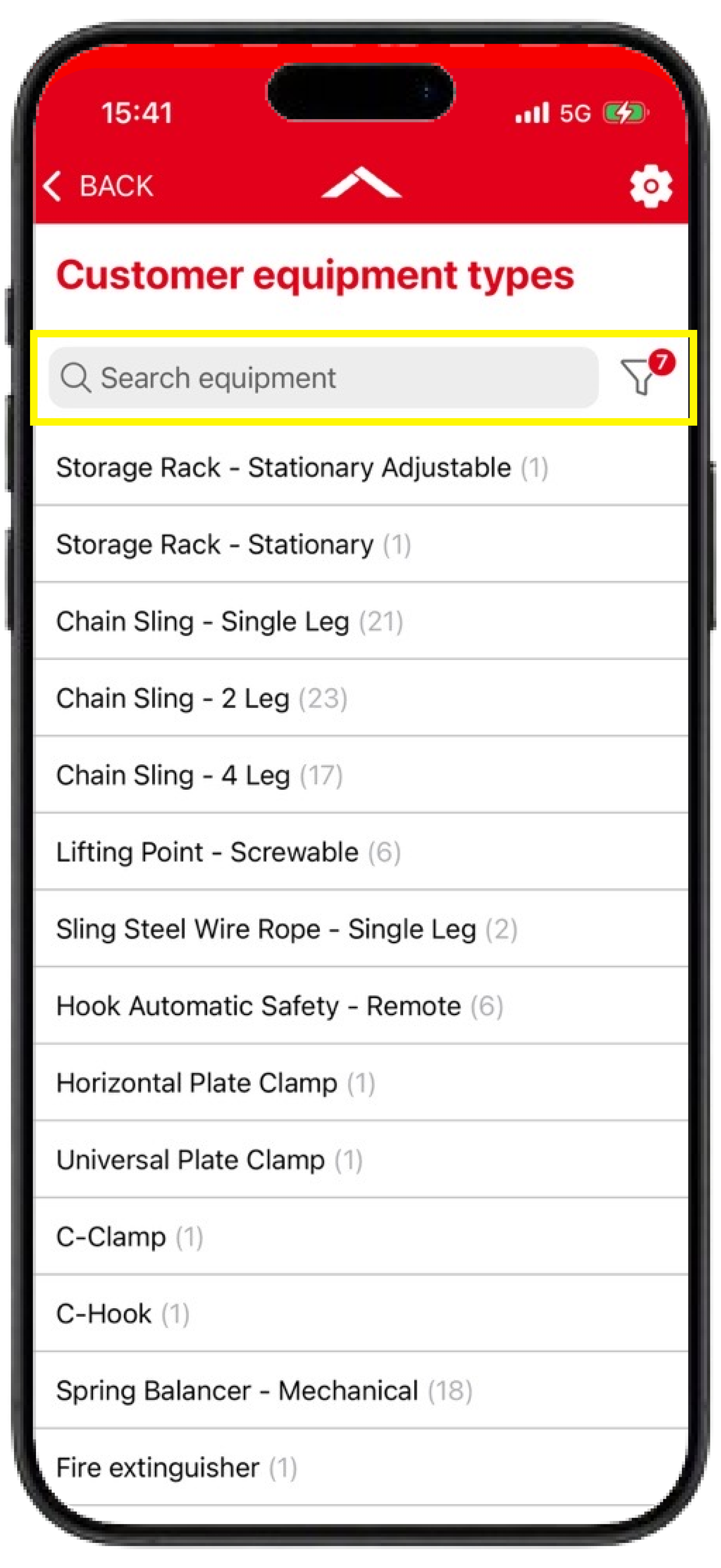
Search Function with Filter
The search function allows equipments to be located using various types of information.
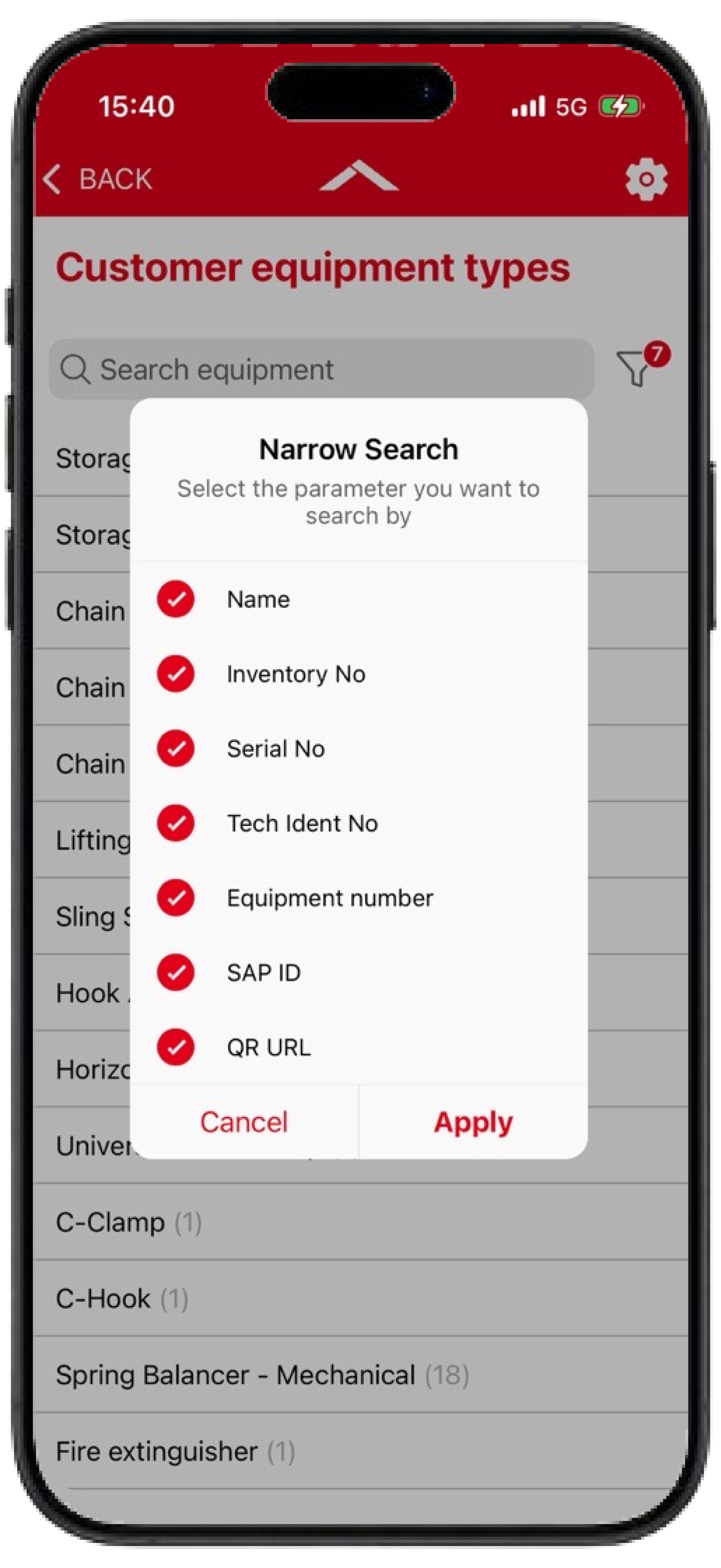
Depending on the available data, searches can be performed using:
-
Name (Description)
-
Inventory Number (Inventory No)
-
Manufacturer Serial Number
-
Technical Identification Number (Tech Ident No.)
-
Equipment Number
-
SAP ID
-
QR URL
This allows equipments to be found quickly, even within larger equipment inventories.
In addition, the search can be restricted to specific search criteria using the filter function next to the search field.
Object Types
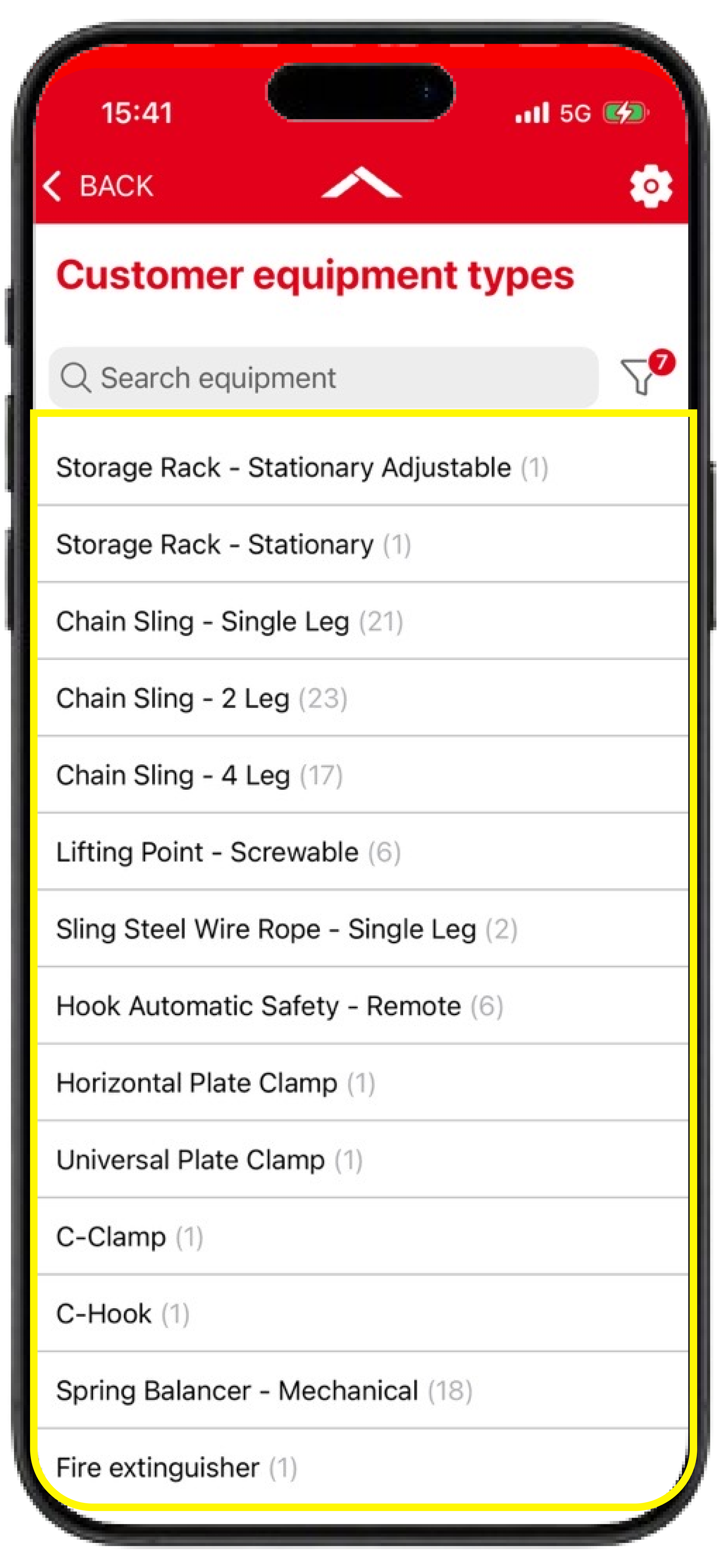
Alternatively, navigation can be performed through the respective object types, just as in the Equipment Portal.
This initially displays a list of all equipments belonging to a specific object type.
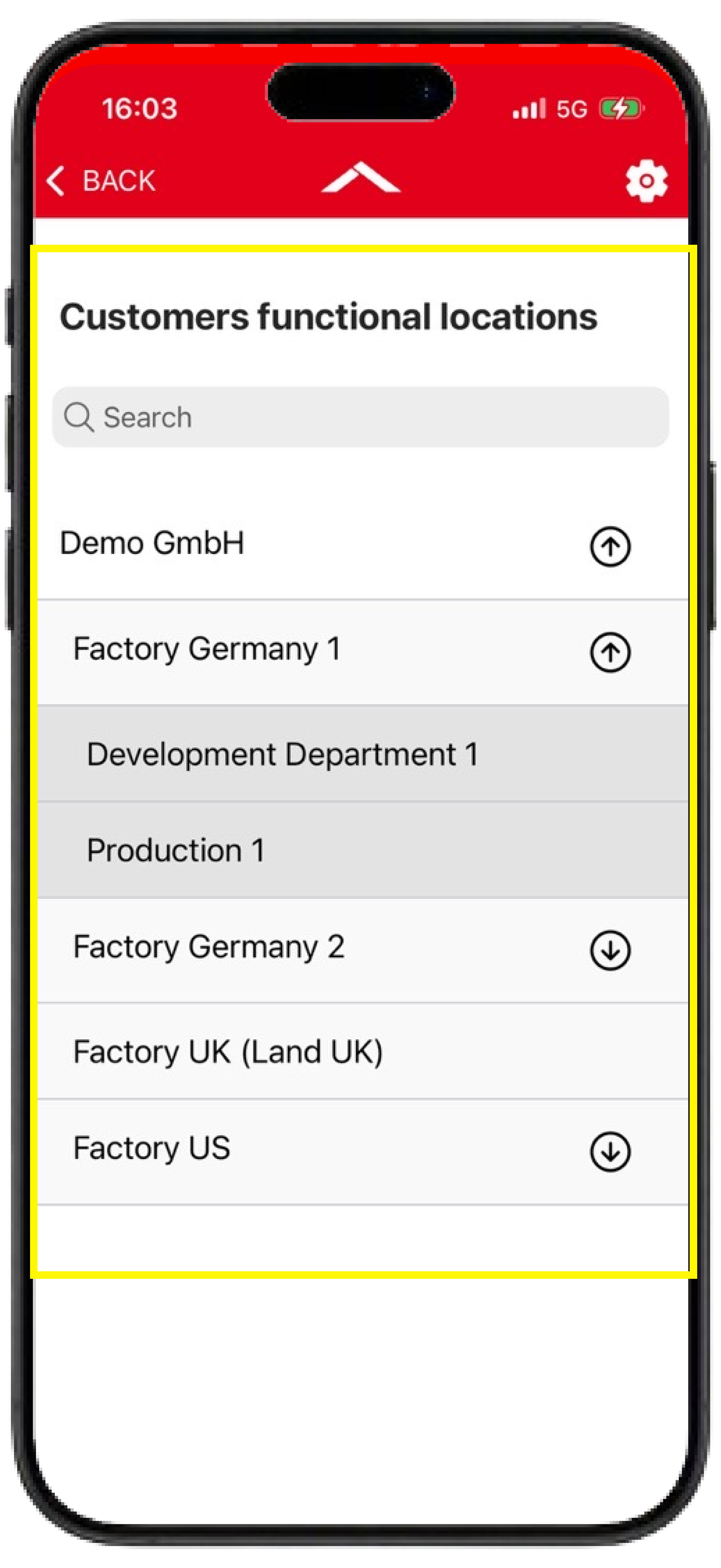
Functional Location
Equipments can also be accessed through a functional location.
Functional locations can be expanded using the arrows on the right-hand side to access subordinate functional locations.
When a functional location is selected, the displayed object type list is automatically restricted to the object types and the number of equipments assigned to that functional location. The list can then be further narrowed down by selecting an object type.
Scan Function
Using the scan function, equipments can be found and opened directly by scanning a barcode or QR code.
If the information stored within the barcode or QR code is maintained in the equipment either as a Technical Identification Number or within the QR Code URL field, the app opens the corresponding equipment directly.
If multiple equipments contain the same information, the app first displays a list of all matching equipments.
The scan function is particularly useful for quickly identifying equipments directly at the place of use.
Manage Equipments
Within the Inspection+ App, equipments can be:
-
created
-
edited
-
copied
-
deleted
directly on site.
This allows many changes to be made during an inspection without needing to switch to the Equipment Portal.
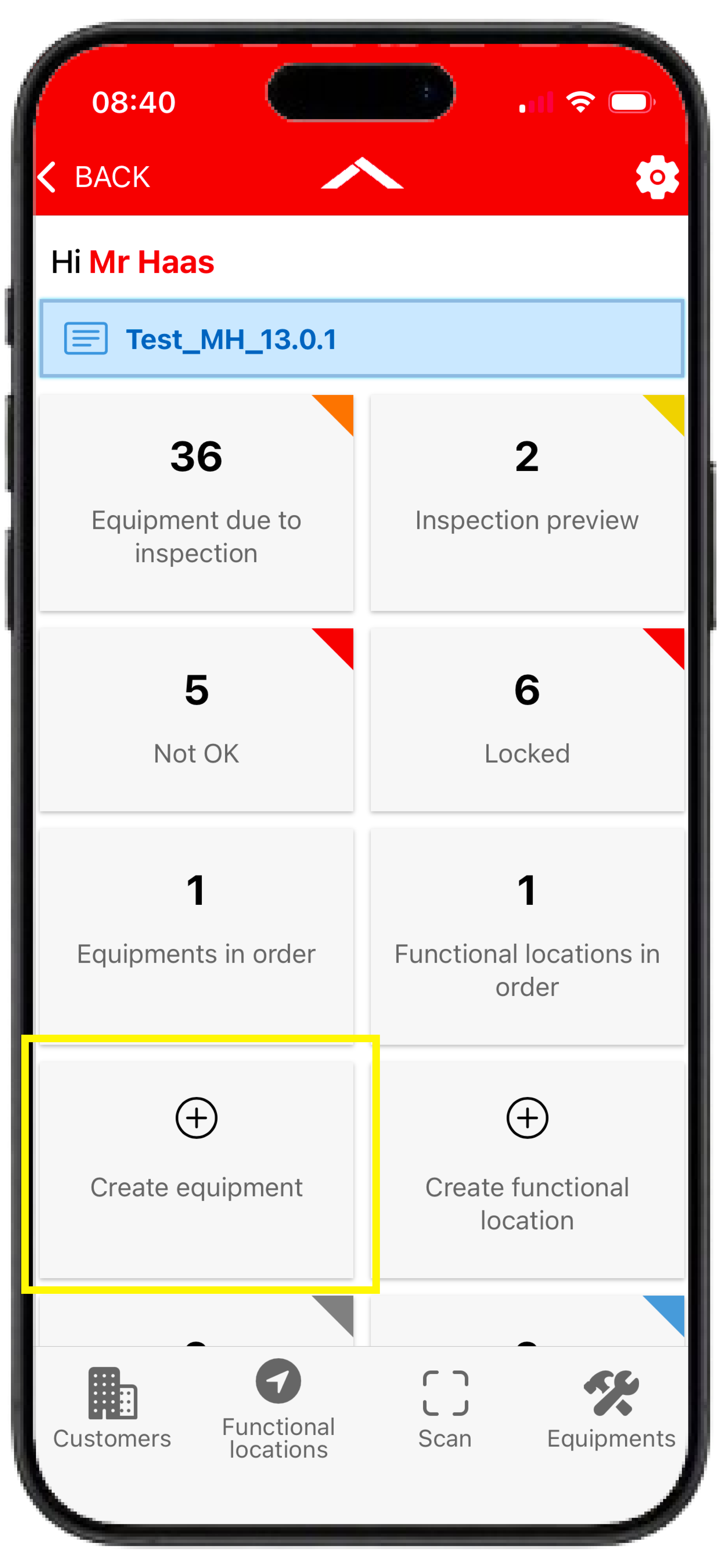
Create Equipment
New equipments can be created directly through the corresponding tile on the app dashboard.
The creation process generally follows the same workflow as creating an equipment in the Equipment Portal.
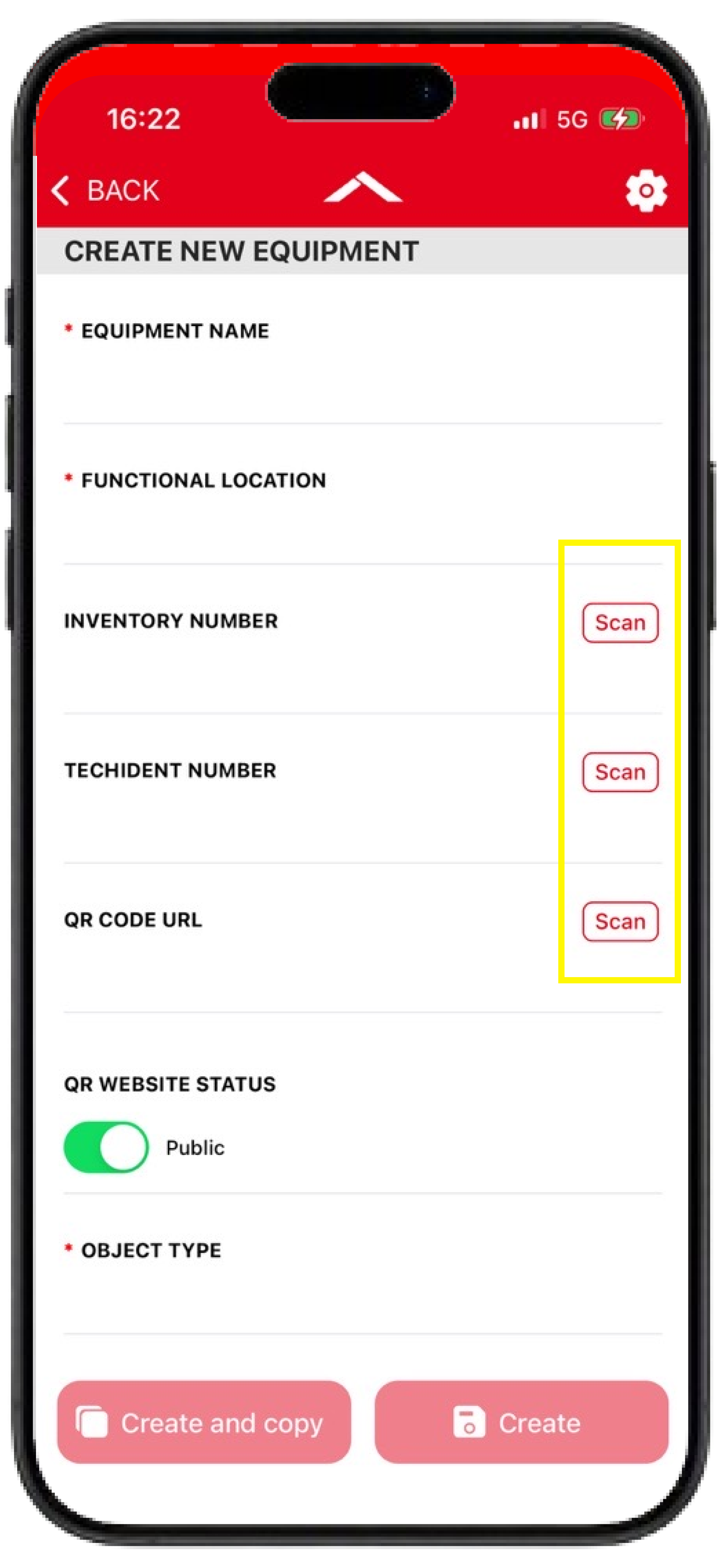
Use the Scan Function
One major advantage of creating equipments in the app is the integrated scan function.
For various information fields, data can be captured directly from a barcode or QR code.
This helps speed up data entry and reduces manual input errors.
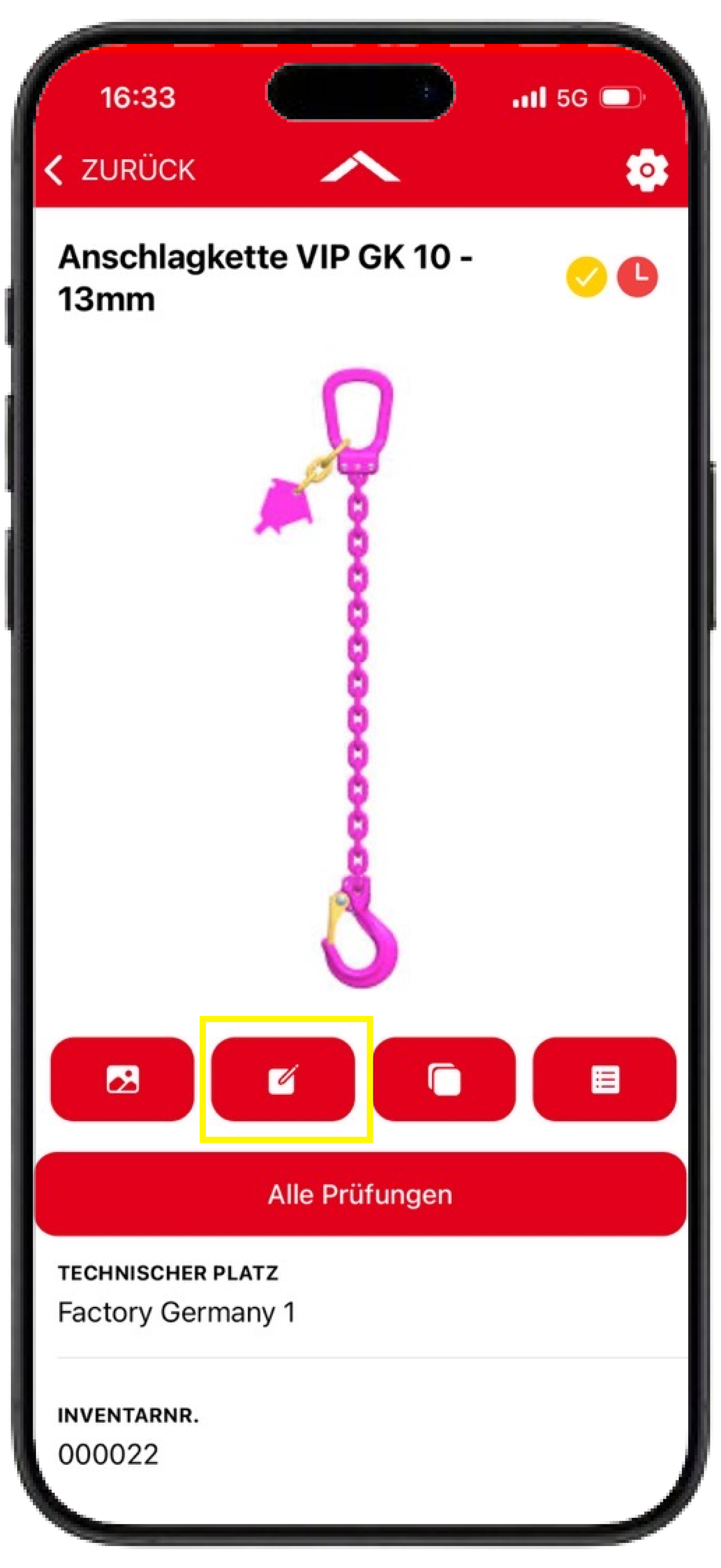
Edit Equipments
Existing equipments can be edited directly within the app.
The edit function is accessed using the edit icon on the equipment.
Just as during equipment creation, information can also be captured or updated using the scan function while editing.
Copy Equipments
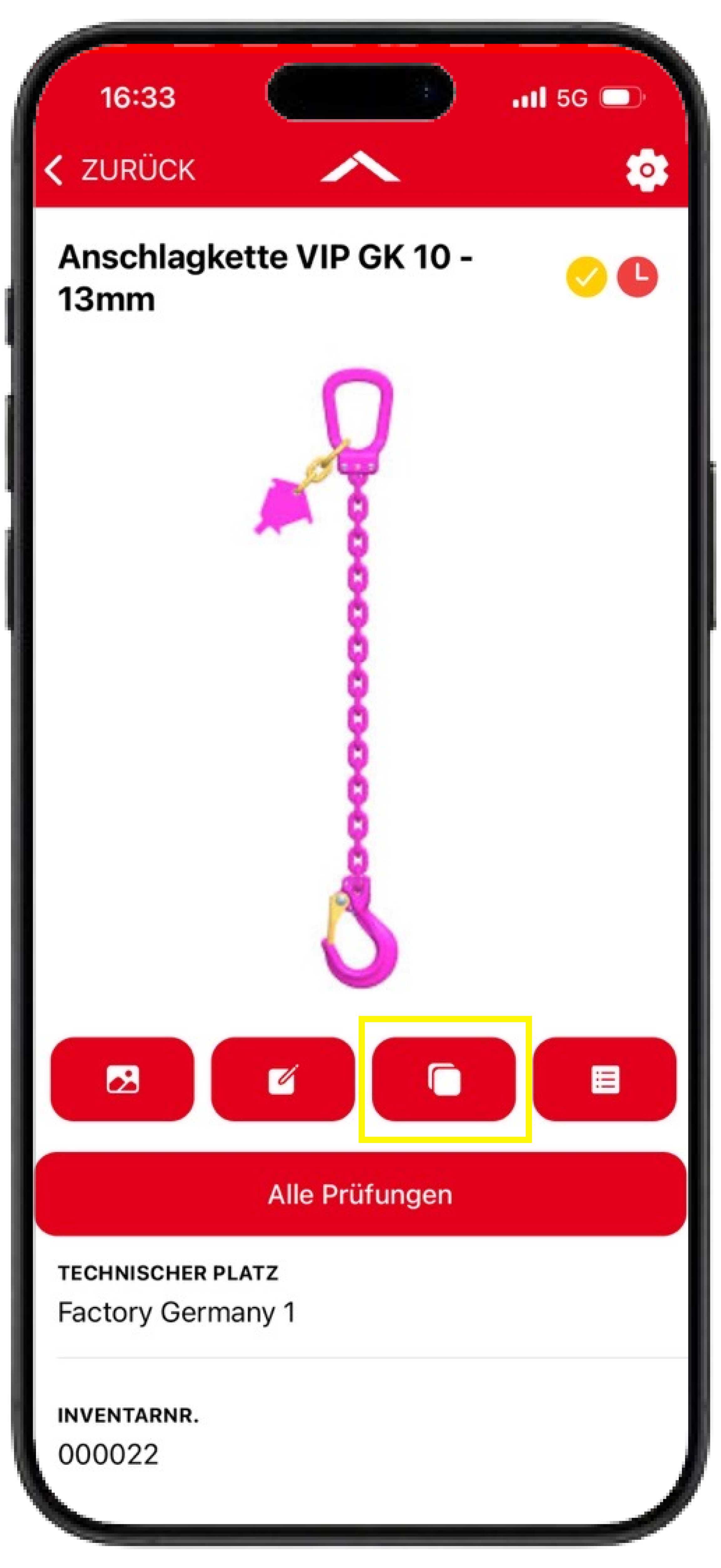
Existing equipments can be used as templates for new equipments.
The copy function is accessed through the corresponding icon on the equipment.
Not all information is copied. In particular, the following fields are excluded:
-
Inventory Number
-
Technical Identification Number
-
Manufacturer serial number
-
QR Code URL
-
Equipment Image
All other maintained information is copied.
Delete Equipments
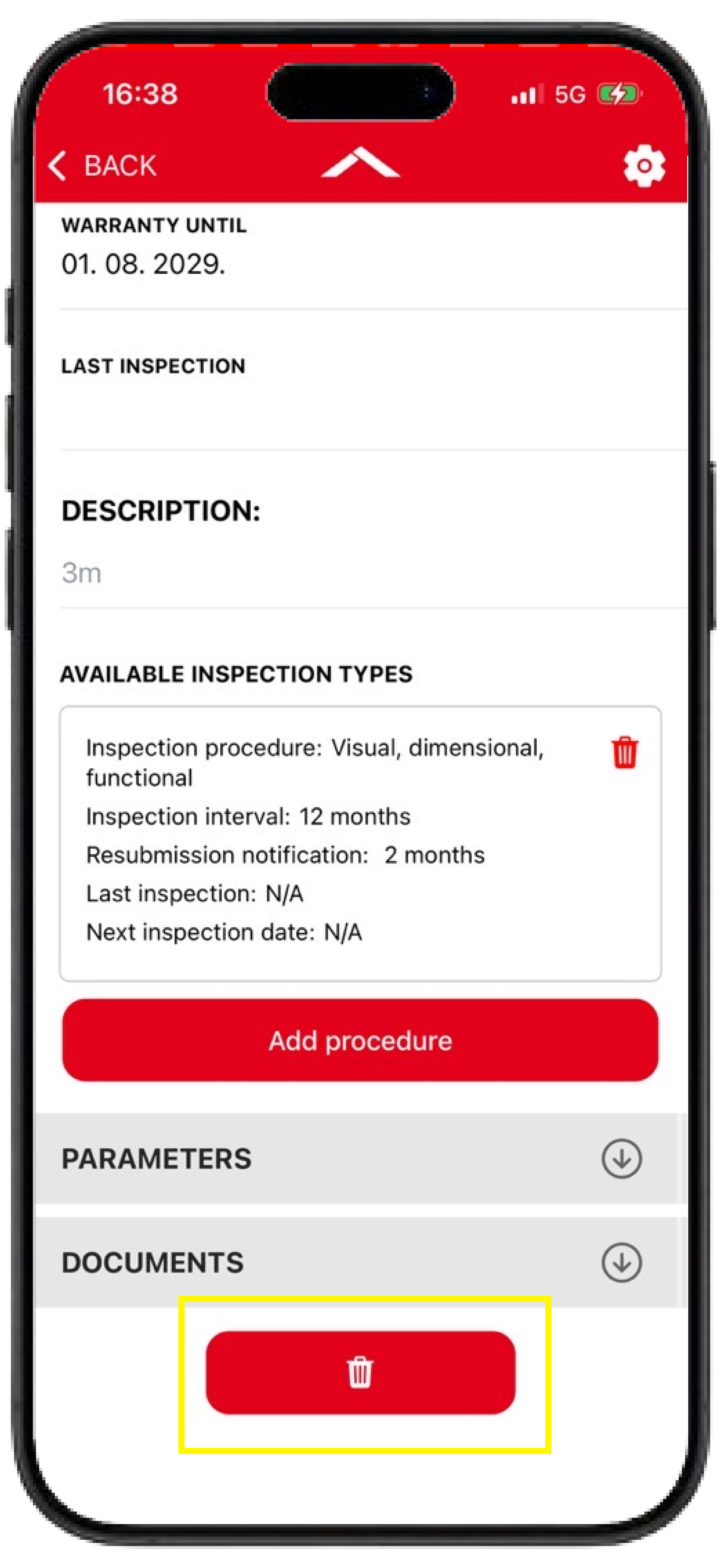
Equipments can be deleted directly within the app.
The delete button is located at the bottom of the equipment view.
Deleted equipments are moved to the recycle bin, where they can continue to be managed. Access to the recycle bin is only available through the Equipment Portal.
Indicators in Equipment Lists
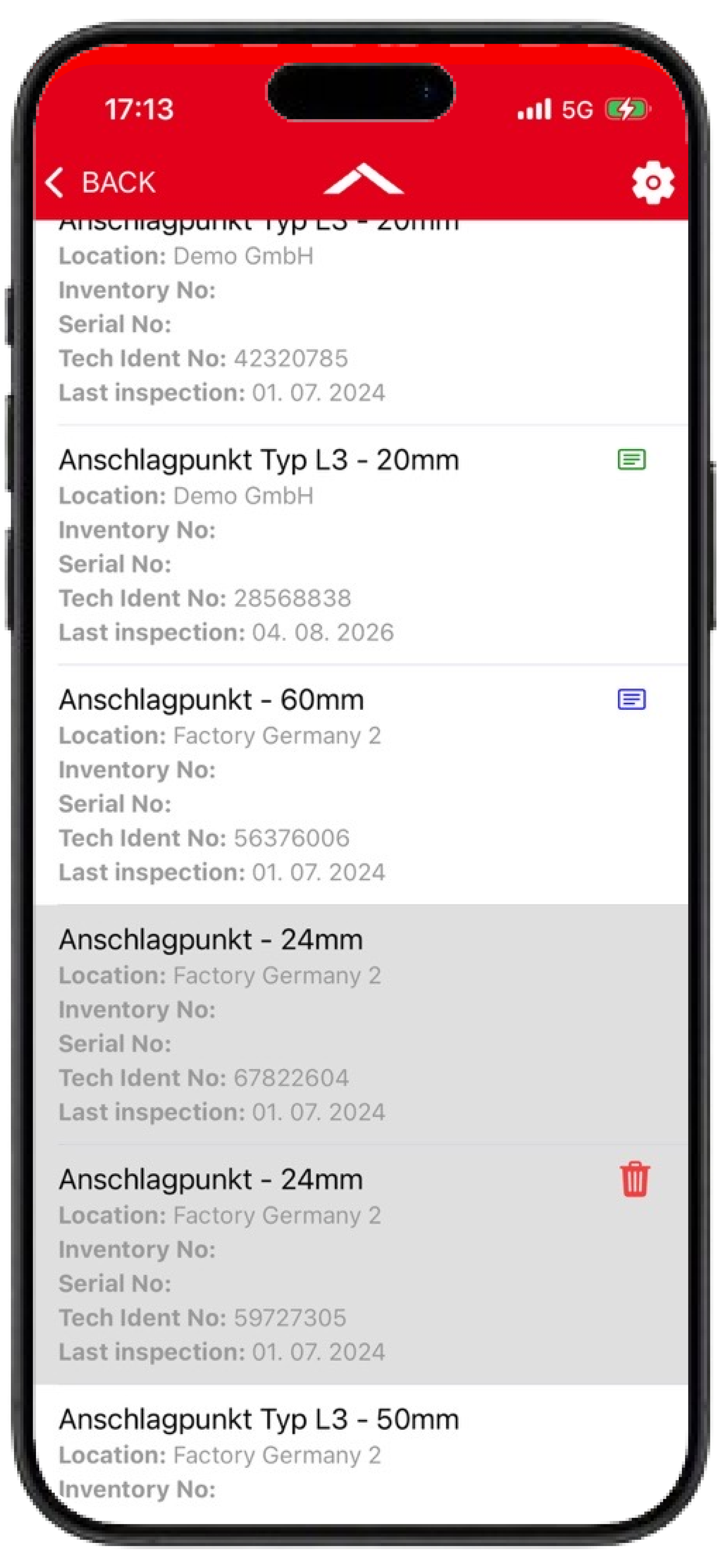
Different icons and indicators are used within equipment lists to display the current status of an equipment.
Blue Icon
A blue icon identifies equipments that have been assigned to an inspection order.
This makes it easy to see which equipments are part of an inspection order and need to be inspected. These equipments are also displayed in the "Equipments Assigned for Inspection" tile and order overview.
Green Icon
A green icon identifies equipments that have already been inspected within the currently opened inspection order.
These equipments are also listed in the "Your Inspections" tile.
Not in use
If an equipment is displayed with a greyed-out background in the equipment list, it has the status "Not in use".
Inspections cannot be performed while the equipment has this status.
End of Life Reached
A greyed-out row with a red recycle bin icon identifies equipments with the status "End of life".
These equipments have been moved to the recycle bin and are no longer available for regular inspections.
Further management of these equipments takes place through the recycle bin in the Equipment Portal.
Inspections and Certificates
Add Inspection
Inspections are carried out directly on the respective equipment.
Further information on performing inspections can be found on the page Inspections and Certificates in the Inspection+ App.
All Inspections and Certificates
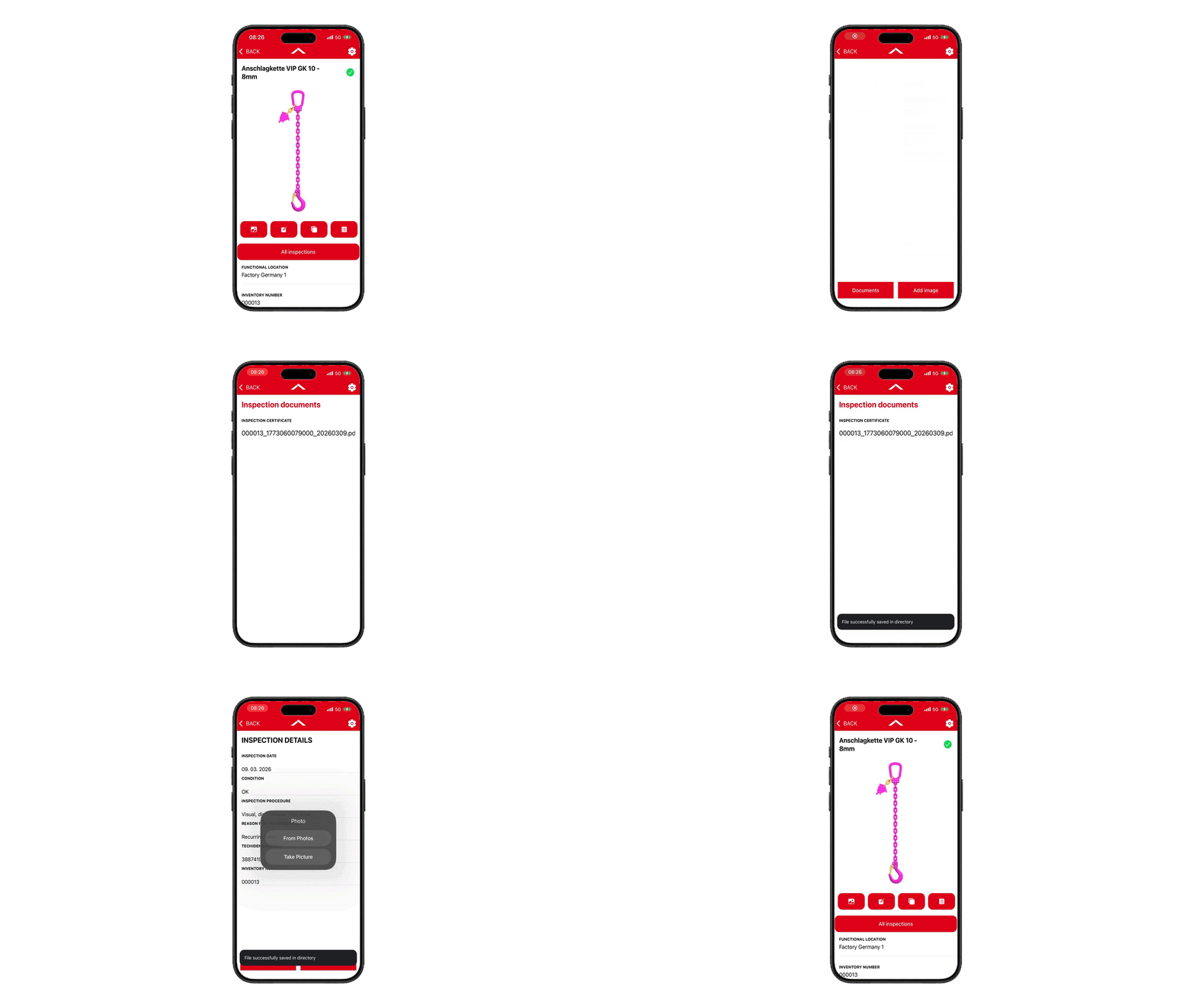
Using the "All Inspections" button, the complete inspection history of an equipment can be viewed, just as in the Equipment Portal.
All inspections previously documented for the equipment are displayed. This provides access to the complete inspection and certificate history directly within the app.
An overview of the available inspections is displayed first, including:
-
Inspection Date
-
Inspection Result
-
Inspection Procedure
-
Reason for Inspection
-
Identification Information (Technical Identification Number or Inventory Number)
The associated certificate can be accessed via the "Documents" button.
The "Add Picture" button also allows additional images to be added to an inspection after it has been completed. After the next synchronization, the images will automatically be included in the associated certificate.
Documents on the Equipment
Documents that have been added to an equipment in the Equipment Portal can be viewed and downloaded directly within the Inspection+ App.
The documents are located in the "Documents" section below "Parameters" and can be expanded using the arrow icon.
This area can be used to access operating instructions, manufacturer documentation and other equipment-related documents directly on site.
Synchronize Documents
To optimize app performance, documents are not synchronized automatically during login.
Instead, documents can be retrieved manually when required. This ensures that only documents that are actually needed are loaded.
During synchronization, only document information such as document descriptions and document types is initially loaded into the app.
The actual file download takes place only when a document is actively opened after synchronization.
Documents with the status "Expired" are not synchronized to the app. These documents are marked with a red dot in the Equipment Portal.
Use Documents Offline
Documents are only available offline after they have been downloaded.
Downloaded documents are identified by a green icon.
Once the documents of an equipment have been synchronized or downloaded, they remain available for the duration of the current session.
If documents are updated in the Equipment Portal, these changes are transferred to the app during the next synchronization.
If the session ends, for example due to logout or closing the app, the documents must be synchronized again.
QR Code Information
The "QR Code URL" and "QR Website Status" fields are part of the Digital Nameplate and can be viewed and edited directly on the equipment.
Further information about the Digital Nameplate, QR code usage and the "Public" and "Private" settings can be found on the page Digital Nameplate (DTS) - QR Code Identification for Equipments.
Frequently Asked Questions (FAQ)
Why can't I find my equipment using the scan button?
The scan function searches equipments using the Technical Identification Number (TechIdentNo.) and the QR Code URL.
To identify an equipment using the scan function, at least one of these values must be maintained on the equipment. Otherwise, the equipment cannot be identified automatically.
Which mandatory fields are required when creating an equipment?
Mandatory fields are marked with an asterisk (*).
At minimum, the following main equipment data must be provided:
-
Description
-
Functional Location
-
Object Type
Additional mandatory fields may be required depending on the object type or configured parameters.
Is there a predefined structure for equipment descriptions?
No. The equipment description is a free-text field and can be defined freely.
What can I do if there is no object type that correctly describes my equipment?
No problem. In this case, it is possible to create custom object types and adapt them to your specific requirements.
Further information can be found on the page Manage Object Types and Characteristics.
If you are interested in this functionality or have any questions, please contact your Carl Stahl representative.
Why can't I save changes to an equipment?
First, verify that all mandatory fields have been completed.
Also review the parameters assigned to the equipment. Changes to object types or standard parameters may introduce new mandatory parameters that must be completed before saving.
The equipment description is also limited to a maximum of 40 characters.
Can existing equipments be copied?
Yes. Existing equipments can be copied and used as a template for creating new equipments.
Further information can be found in the Copy Equipments section.
What do the indicators next to the equipment description mean?
The meaning of the various indicators is explained in the Indicators in Equipment Lists section.
Information is available for:
-
blue indicators
-
green indicators
-
grey indicators
-
grey indicators with a recycle bin icon
Can equipment documents be displayed in the app?
Yes. Documents uploaded to an equipment within the Equipment Portal can be viewed and downloaded directly in the app.
Further information can be found in the Documents on the Equipment section.
Can documents be uploaded directly through the app?
No. Documents cannot currently be uploaded directly to an equipment through the Inspection+ App.
Documents must be managed through the Equipment Portal and can then be viewed and downloaded in the app.
Why are not all documents displayed in the app?
Documents with the status "Expired" are not synchronized to the Inspection+ App.
In the Equipment Portal, these documents are identified by a red dot.
What are the QR code fields on the equipment used for?
The "QR Code URL" and "QR Website Status" fields are part of the Digital Nameplate.
Further information can be found on the page Digital Nameplate (DTS) - QR Code Identification for Equipments.
Why can't I save my URL in the "QR Code URL" field?
Only URLs generated by Carl Stahl can be stored in the "QR Code URL" field.
Other URLs are rejected by an integrated validation process.
Further information can be found on the page Digital Nameplate (DTS) - QR Code Identification for Equipments.