.jpg)
What Are Inspection Orders?
If you would like to first understand what inspection orders are and how they affect the use of the Inspection+ App, please read the section Inspection Orders in the Inspection+ App first.
This page describes the creation, management and maintenance of inspection orders in the backend.
Requirements for Creating and Managing Inspection Orders
The "I+ Admin (Standard)" Permission Group is required to create and manage inspection orders.
This permission is included in the Premium Package and is granted by Carl Stahl.
If you use the Premium Package and would like to manage inspection orders yourself, please contact your Carl Stahl representative.
Create an Inspection Order
New inspection orders are created through the "Orders" section in the backend.
The creation process follows a multi-step form. Certain information is mandatory and must be completed before proceeding to the next step.
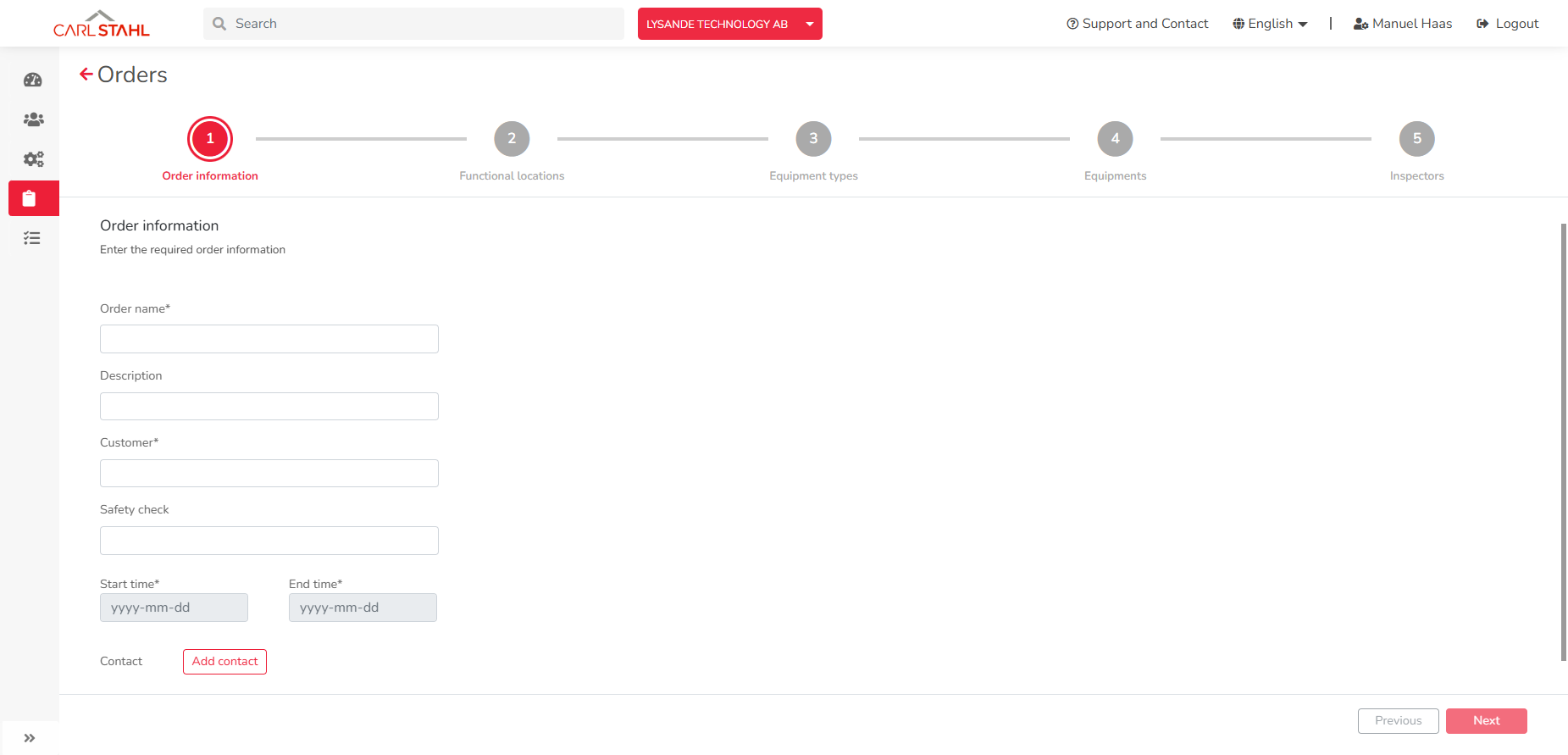
Step 1: Order Information
In the first step, the basic information of the inspection order is entered.
Mandatory Fields
-
Order name
-
Customer / Organization
-
Inspection start time
-
Inspection end time
-
Safety check (can also be added later)
The start and end times are primarily used for planning purposes. An inspection order generally remains available in the Inspection+ App even outside this period.
After completing all mandatory fields, click "Next" to continue.
Step 2: Select Functional Locations
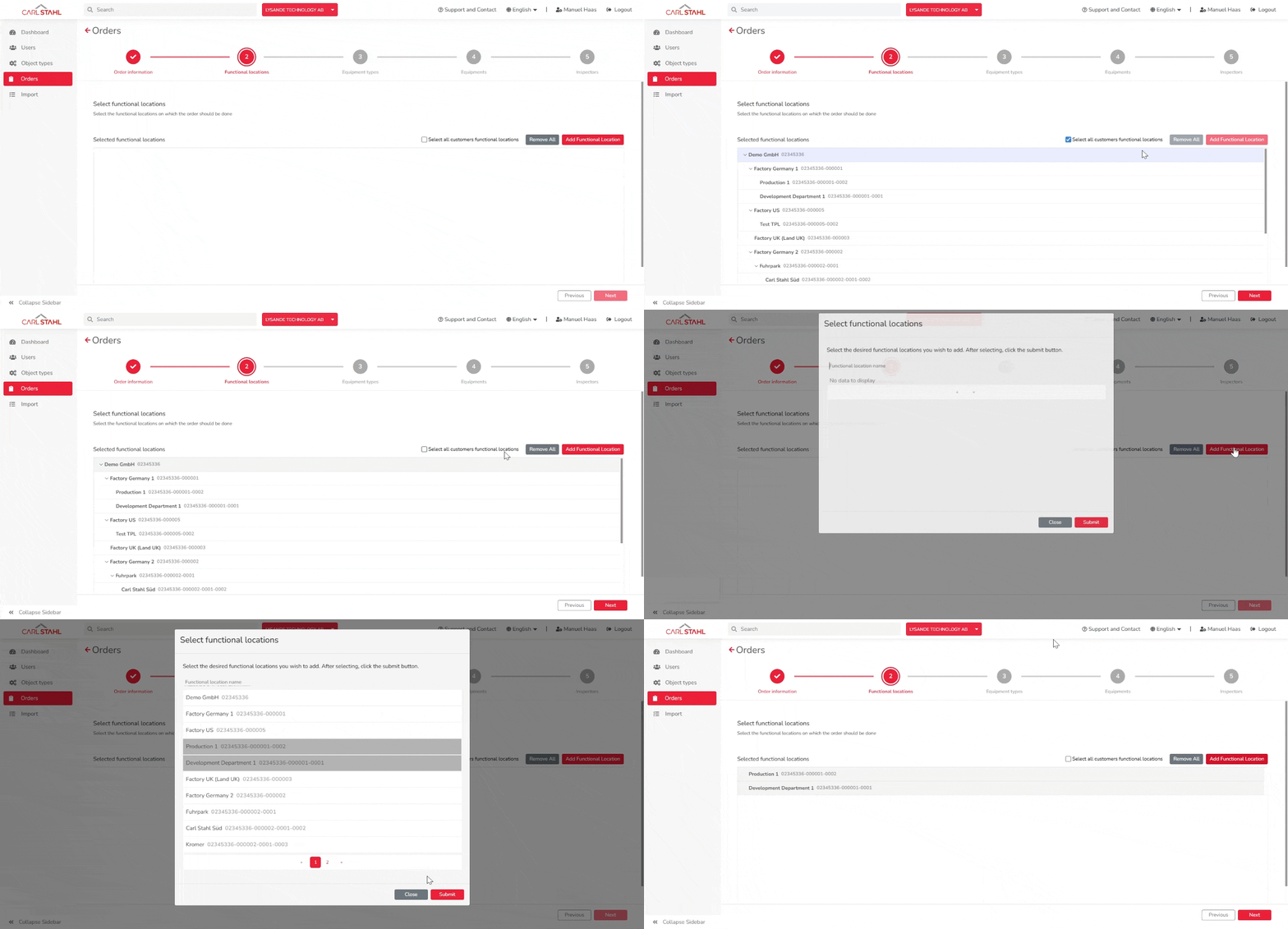
In the next step, the functional locations to be inspected are selected.
At least one functional location must be selected before proceeding to the next step. Alternatively, all functional locations of the selected organization can be selected at once using the selection option.
The selected functional locations are used for:
-
inspection planning
-
overview within the dashboard
-
the dashboard metric "Functional locations in order"
All inspection-relevant equipments (Inspection Preview, Due for Inspection and Equipments without any Inspection) managed on the selected functional locations are automatically selected for the equipment selection step.
Select Individual Functional Locations
Individual functional locations can also be selected using the "Add Functional Location" button.
This is particularly useful for larger organizational structures where not all areas should be inspected at the same time.
Step 3: Select Object Types (Optional)
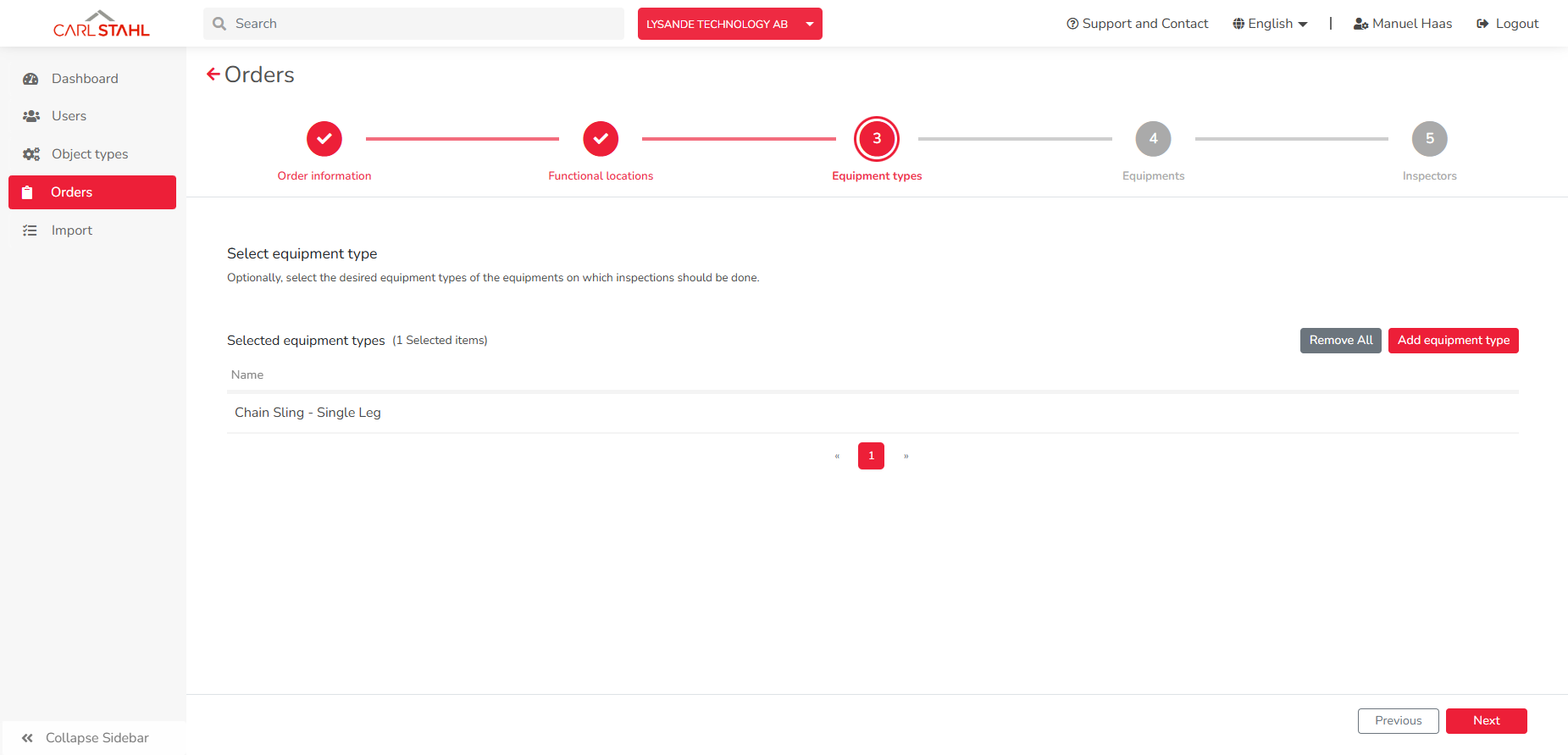
One or more object types can optionally be selected.
This selection affects the subsequent equipment selection in step 4 and limits the automatically suggested equipments to the selected object types.
If no object type is selected, all inspection-relevant equipments of the previously selected functional locations are considered.
Selecting an object type is useful, for example, if an inspector should only inspect a specific type of equipment.
Step 4: Select Equipments (Optional)
In the next step, individual equipments can be assigned to the inspection order.
Based on the selected functional locations and, if applicable, the selected object types, relevant equipments are automatically selected.
Additional equipments can be added manually, or previously suggested equipments can be removed again.
The assignment of equipments is mainly used for:
-
to mark inspection-relevant equipments in the app
-
Overview in the dashboard
If no additional equipment is selected, this step can be skipped.
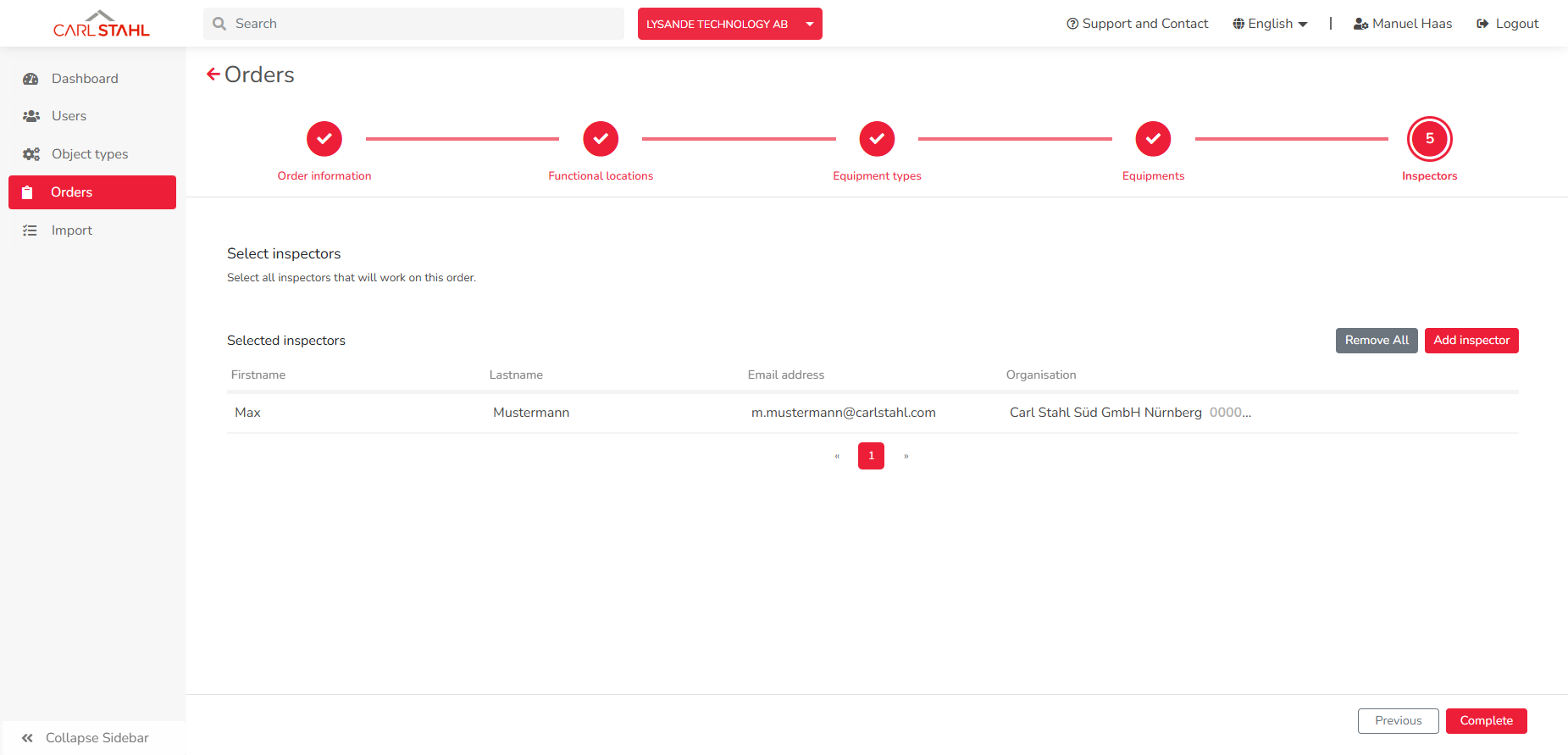
Step 5: Assign Inspectors
In the final step, inspectors are assigned to the inspection order.
At least one inspector must be assigned. However, multiple inspectors can also be selected.
Assigning multiple inspectors is useful, for example, when inspections are carried out jointly or when different parts of an inspection order are divided between several people.
After the inspection order is released, it becomes available to all assigned inspectors within the Inspection+ App.
Complete the Order Creation
Once all inspectors have been added, the creation of the inspection order can be completed using the "Finish" button in the bottom right corner.
The inspection order is then saved in the backend and automatically released to the selected inspectors.
The inspectors can then open the inspection order in the Inspection+ App and begin performing inspections.
Edit an Inspection Order
Existing inspection orders can be edited at any time.
For example, the following actions are possible:
-
add or remove inspectors
-
add or remove functional locations
-
add or remove object types
-
add or remove equipments
-
add safety checks
-
modify certain order information
Add a Safety Check later
A safety check or risk assessment can also be assigned to an inspection order after it has been created.
Once a safety check has been added, it can no longer be removed from the inspection order.
"Inspectors" Tab
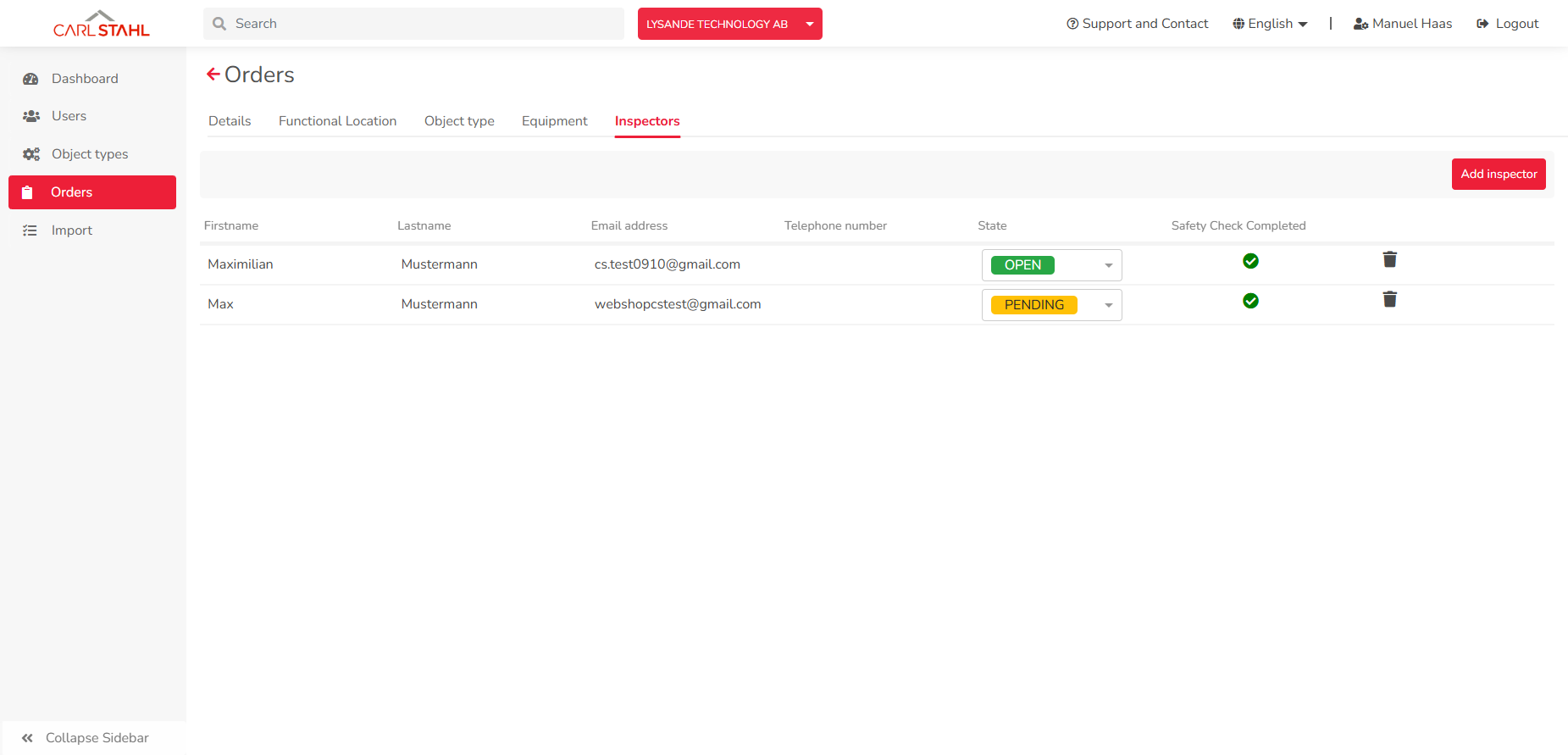
The "Inspectors" tab allows you to manage the inspectors assigned to the inspection order and view their current processing status.
For each inspector, the following information is displayed:
-
current order status (Open, Pending or Closed)
-
safety check status
-
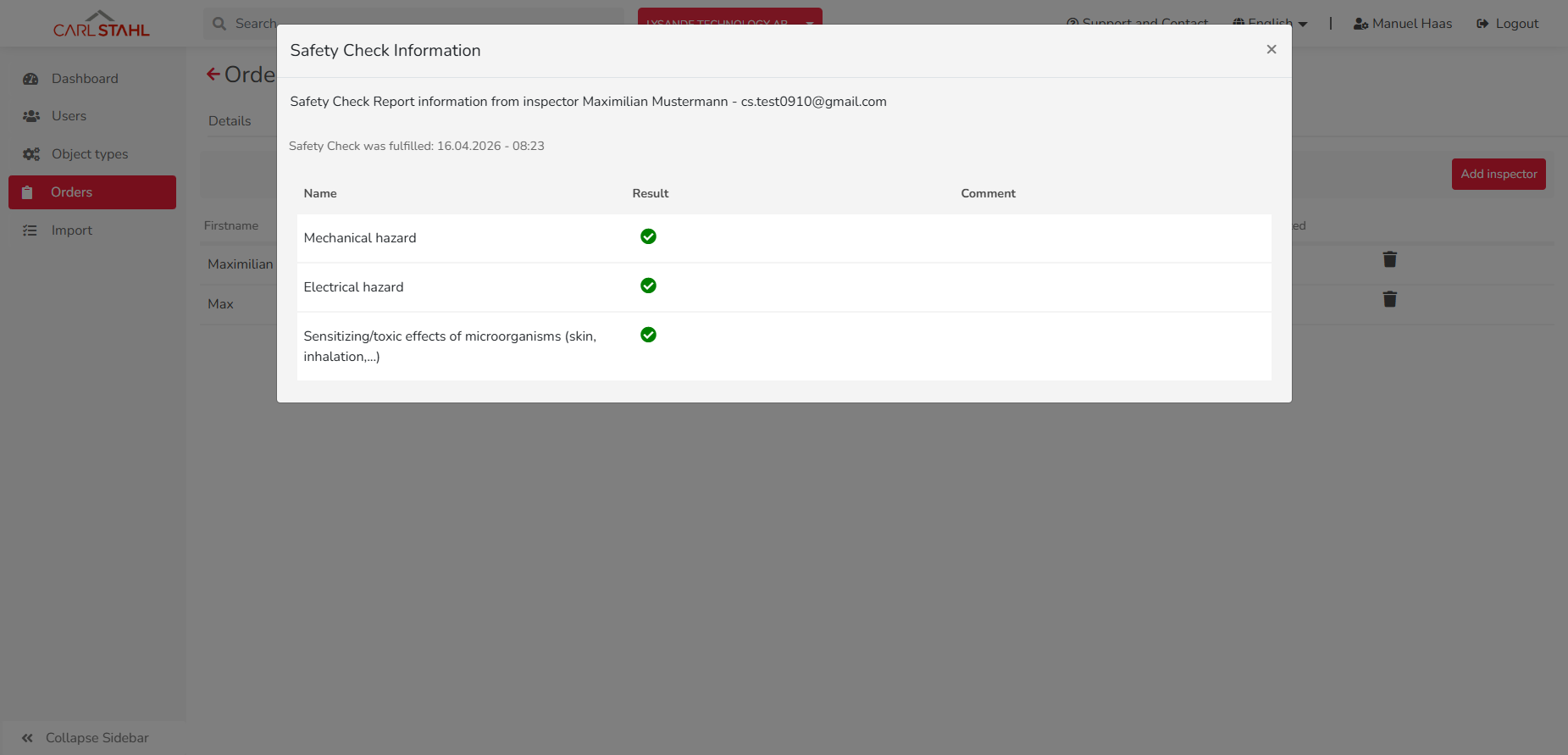
evaluations of individual safety check checklist items
-
comments entered during the safety check
This makes it possible to track which inspector has already processed or completed the order and whether the safety check has been completed.
If a red X is displayed in the "Safety Check Completed" column, there are two possible reasons. Either the inspector has not yet completed the safety check, or at least one inspection item was rated as "OK with Remark" or "Not OK". If you’re unsure, it is recommended to also review the order status shown in the preceding column.
Archived Orders
Completed inspection orders are archived automatically. The status "Archived" refers to completed inspection orders that can no longer be actively processed.
An inspection order is only archived once all assigned inspectors have completed the order.
Archived inspection orders remain available for traceability and documentation purposes. However, they are no longer displayed in the regular order overview or within the Inspection+ App.
To display archived inspection orders, the "Include archived orders" option must be enabled.

Excel Inspection List in the Backend
Automatic Delivery
After an inspection order has been completed, the inspection list is automatically generated and sent by email to the order creator and the assigned inspector(s).
Further information about the inspection list can be found in the section Inspection List After Completion on the Inspection+ App page.
Resend Inspection List
If required, the inspection list can be resent using the corresponding button in the order details within the backend. The email is sent exclusively to the currently logged-in user.

This can be useful, for example:
-
if the original email is no longer available
-
if the inspection list is needed again
The inspection list can also be sent while an inspection is still in progress.
In this case, the inspection list will only contain inspections and inspection results that have been completed and documented up to the time of sending.
Frequently Asked Questions (FAQ)
Order Status
Why does an inspection order not appear in the Inspection+ App?
Please check the following:
-
Was the inspection order created correctly?
-
Has at least one inspector been assigned?
-
Has the correct inspector been assigned to the order?
None of this was helpful? Please feel free to contact your Carl Stahl representative.
Why is an inspection order still visible although it has been completed?
If multiple inspectors are assigned to an inspection order, the order remains active until all assigned inspectors have completed their part.
The status of individual inspectors can be viewed in the Inspectors tab of the respective inspection order.
Inspectors
How can I add another inspector to an existing inspection order?
It's important to note that the inspection order has not yet been closed. Only then it’s possible to add one or more additional inspectors later through the backend!
Open the inspection order in the backend and use the Inspectors tab to add, modify or remove inspectors.
Why can't I add another inspector?
Inspectors can only be added or removed as long as the inspection order has not yet been fully archived.
How can I see whether an inspector has already opened the order?
Open the inspection order in the backend and navigate to the "Inspectors" tab.
The following statuses are available:
-
Open – The order has not yet been processed.
-
Pending – The order is currently being processed.
-
Closed – The inspector has completed the order.
Search and Archiving
How can I filter or sort the order list?
Orders can be searched by order name and customer name.
In addition, orders can be sorted by:
-
start time
-
end time
-
creation date
You can also use the filter options to define date ranges for created, started or completed orders.
How can I find a completed order?
Completed orders can be displayed by enabling the "Show Archived Orders" option.
How can I identify whether an order is still active or already archived?
All active orders are displayed in the "Orders" section of the backend.
If no result is found, enable "Archived Orders" and search again.
Archived orders are highlighted in grey and can additionally be identified by all assigned inspectors having the status "Closed".
Safety Check
Where can I view the results of a safety check?
The results are stored directly within the corresponding inspection order and can be viewed in the "Inspectors" tab.
Further information can be found in the section Inspectors Tab.
Reactivation
Can an order be reactivated after it has been completed by the inspectors?
If multiple inspectors are assigned and at least one inspector has not yet completed the order, the inspection order remains available and can still be worked on.
Once the inspection order has been archived in the backend, a new order must be created.